Search
Use the Search page to find recordings, events, and sessions across every device in your organization.
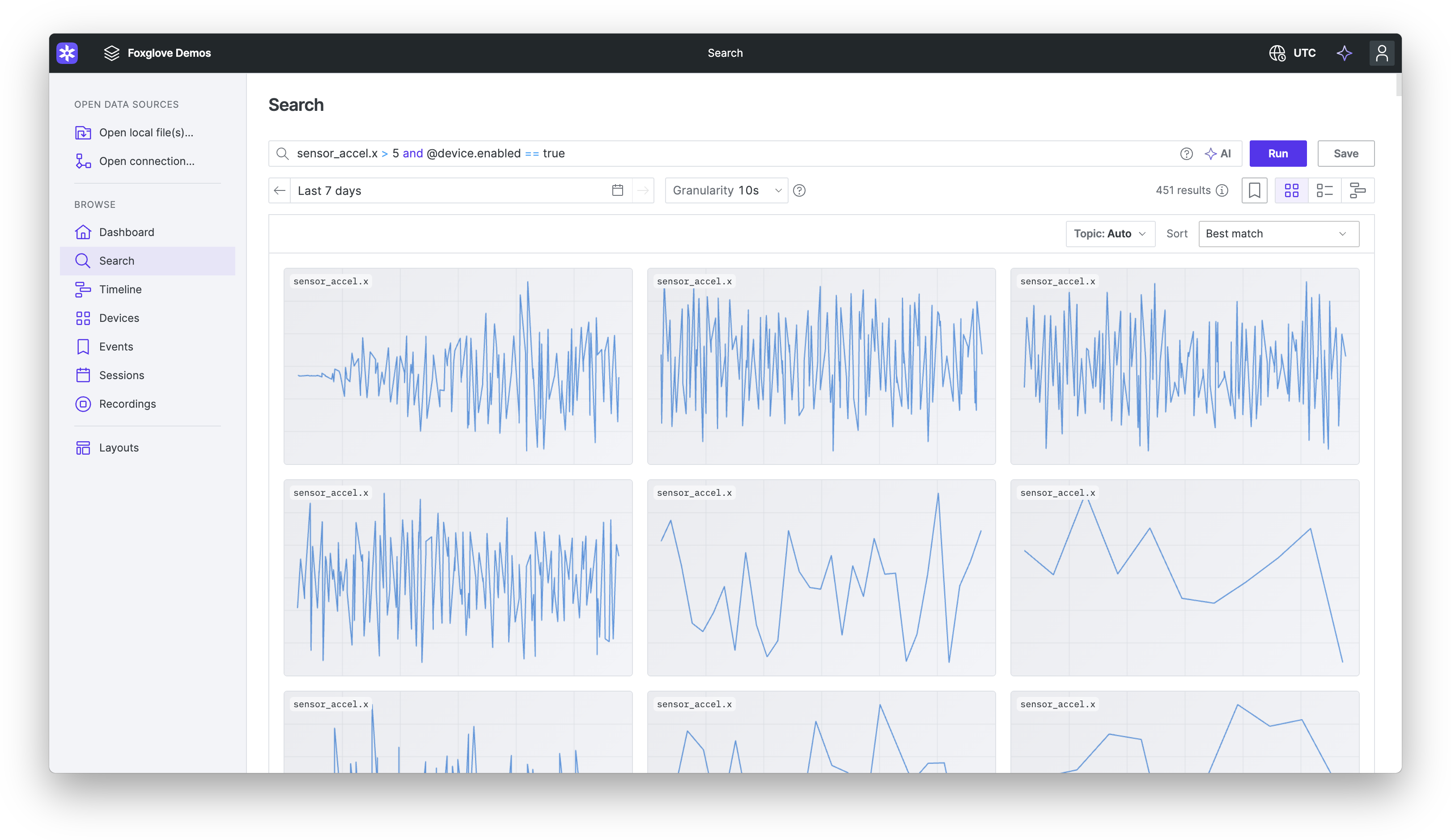
How search works
Run a query from the Search page to find recordings, events, and sessions across your organization. Each query combines one or more conditions on fields like device, time range, event type, topic, or metadata.
- Gallery view: Browse previews before opening results.
- List view: Results in a sortable table.
- Timeline view: Results plotted across time.
Open a result to visualize the matching data.
For self-hosted Primary Sites, scans of recording contents run on the query service in your Primary Site, so message contents and attachments never leave your infrastructure. See the Primary Site FAQ for more detail.
Building a query
A query is made up of one or more conditions. Each condition names a field (such as device ID, event type, or a metadata key), an operator, and a value:
@device.name == husky
Conditions are joined with and or or, and parentheses group them:
@event.properties.severity > 3 and /diagnostics.level > 1
(@device.name == husky or @device.name == spot) and @recording.metadata.mission.site == warehouse-3
Press Enter or click Run to execute the query. Use the view toggle to browse results in Gallery, List, or Timeline.
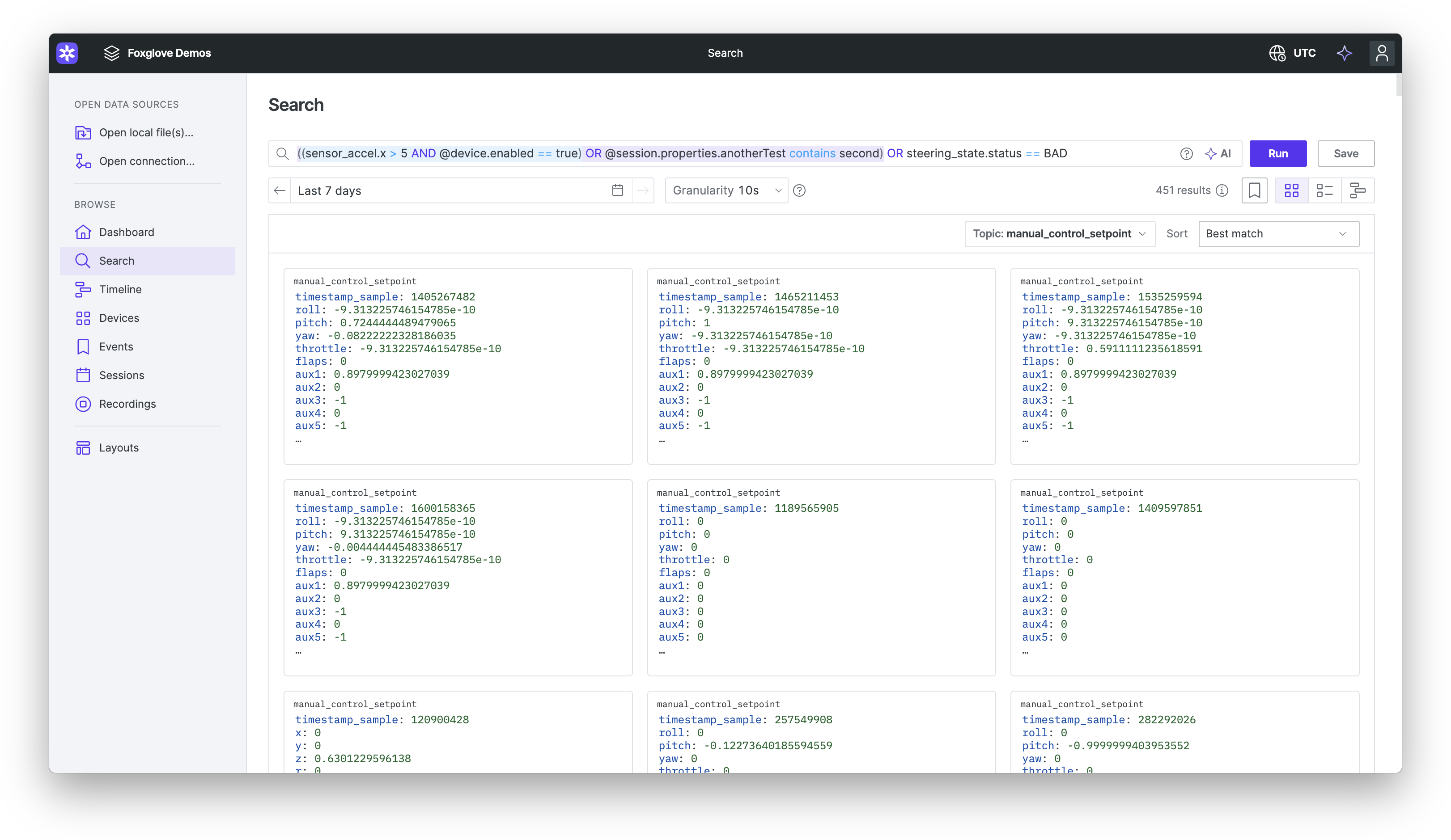
The search bar helps as you type:
- Suggestions complete fields, operators, values, topics, and expressions. Use the arrow keys or Tab to move through them, and Enter to accept one.
- Refine your search lists the available fields and condition types with examples, and inserts the one you click. Open it from the question mark button in the bar, or with
Ctrl+/(Windows and Linux) orCmd+/(macOS). - With an empty bar, the suggestions include starting points and your recent searches.
- Foxglove underlines anything it can't run — a syntax error, an unknown field, a topic that doesn't exist, a field path missing from the topic's schema. Hover over an underline to see why. "Run" stays disabled until the query is valid.
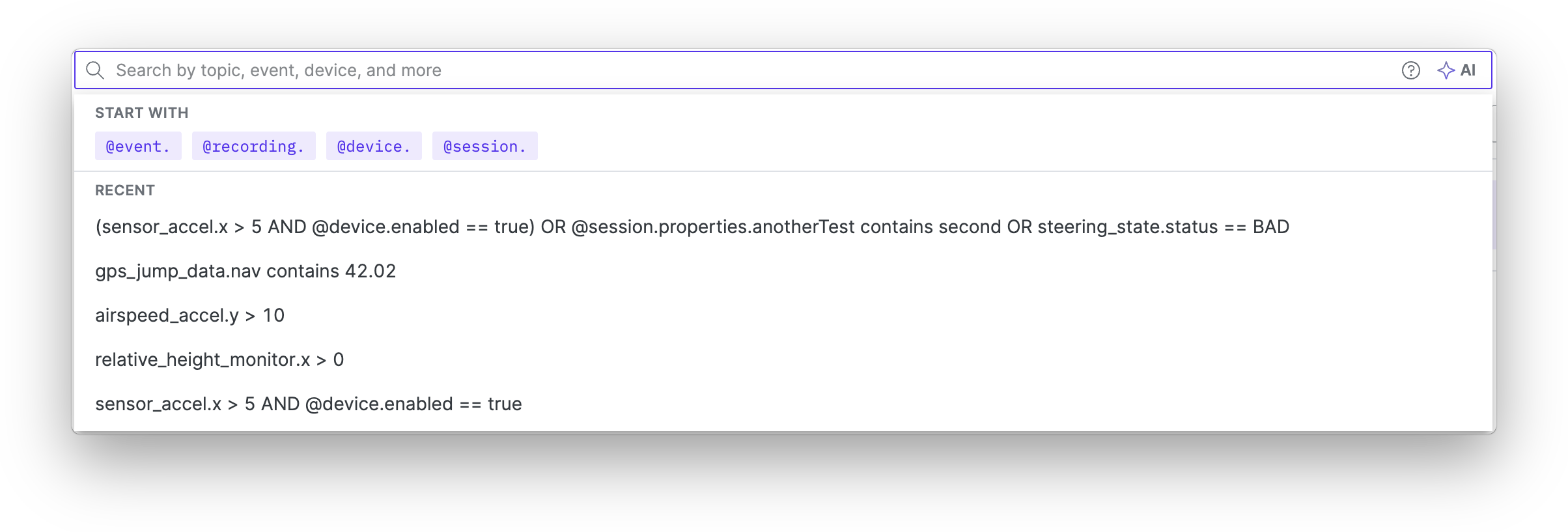
Syntax
- Fields on recordings, events, devices, and sessions start with
@(for example,@device.name). - Visual searches are wrapped in
visual("...")(for example,visual("fire truck")). - Anything else reads as a topic name, optionally followed by a field path (for example,
/gps.latitude). Write the topic exactly as it appears in the recording — adding a leading/to a topic that doesn't have one searches a different topic. - Every condition needs a field and an operator. A term on its own isn't a full-text search, so
huskyreads as an unfinished condition rather than a word to look for. - Spaces separate an operator from what it compares.
@device.name == huskyruns;@device.name==huskydoesn't. - Equality is
==. A single=isn't an operator. and,or, and the word operators aren't case sensitive —ANDbehaves likeand.andandorcan be mixed, andandbinds tighter, as in Python —a and b or cruns as(a and b) or c. Parenthesize for the other grouping:(a or b) and c.- Parentheses nest to any depth.
- A query restored from a link or a saved search is rebuilt from the query Foxglove stored, so it comes back with uppercase connectors and the parentheses that precedence implies:
a and b or creads back as(a AND b) OR c. - Quote a value that contains spaces or any of the characters
(,),",=,<,>,!,\(for example,@recording.metadata.mission.driver == "Sam Chen"). Inside a quoted value, escape a quote or a backslash with a leading backslash —\"and\\. - Quoting works the same way in a field name, one segment at a time:
"my camera".width > 100compares thewidthfield on themy cameratopic. Quote a name that collides with a word the query reserves —and,or,like,contains,not-contains, andexists— for the same reason:"exists" exists. existstakes no value.
Searchable fields
You can search across several categories of fields:
| Category | Examples | Description |
|---|---|---|
| Visual search | visual("...") (for example, visual("fire truck")) | An object or scene of interest visible in your recording data |
| Recording | @recording.id, @recording.key, @recording.deviceId, @recording.deviceName, @recording.path | Built-in fields on every recording |
| Recording metadata | @recording.metadata.<record>.<key>, for any key from your recording metadata | String values attached to recordings |
| Event | @event.id, @event.eventTypeId, @event.deviceId | Built-in fields on events |
| Event properties | @event.properties.<key>, for any custom property defined for events | User-defined properties |
| Event metadata | @event.properties.<key>, for any key from your event metadata | String key-value pairs on events |
| Device | @device.id, @device.name, @device.enabled | Built-in fields on devices |
| Device properties | @device.properties.<key>, for any custom property defined for devices | User-defined properties |
| Session | @session.id, @session.key, @session.deviceId | Built-in fields on sessions |
| Session properties | @session.properties.<key>, for any custom property defined for sessions | User-defined properties |
| Message | Topic and field path (for example, /gps.latitude) | Values decoded from message contents in your recordings |
| Topic | Topic name (for example, /gps) | Recordings where the topic exists — answered from file-level metadata, no message decoding |
A recording's path is its name, so @recording.path like %front-camera% finds recordings whose name contains front-camera. Event metadata keys share the @event.properties. prefix with event custom properties.
Recording metadata keys carry the name of the MCAP metadata record that holds them, so a site key in a mission record is @recording.metadata.mission.site. Autocomplete suggests the full path.
Refine your search lists the same categories in the app, each with an example you can insert:
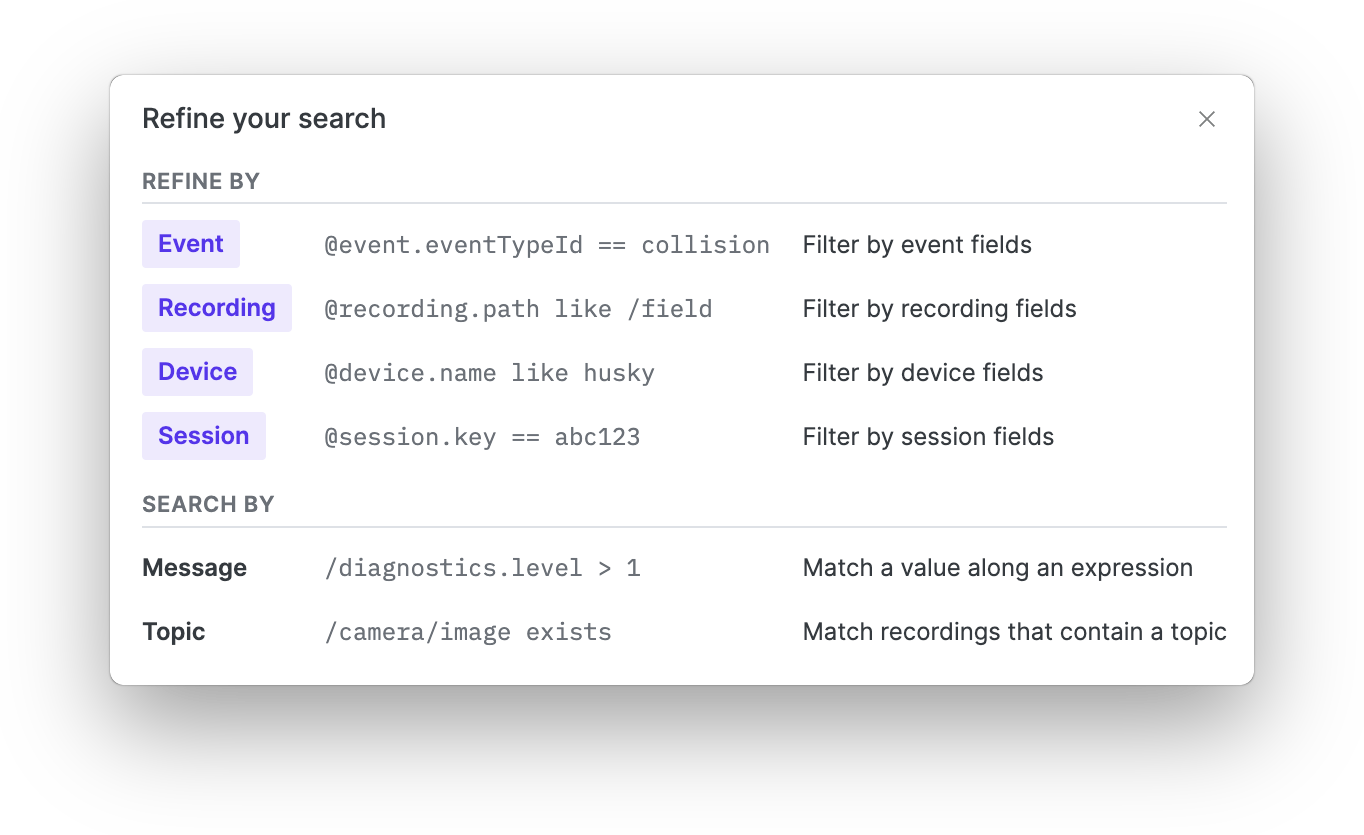
Event types are stored by ID. Suggestions show each event type's name and insert its ID, so pick the event type from the dropdown rather than typing its name.
Operators
The operators available for a condition depend on the field's data type:
| Data type | Operators | Used by |
|---|---|---|
| String | ==, !=, like, exists | Most built-in fields, metadata keys, string message fields |
| Number | ==, !=, >, >=, <, <=, exists | Numeric custom properties, message fields |
| Boolean | ==, !=, exists | Boolean fields (for example, @device.enabled), boolean message fields |
| Enum | ==, !=, exists | Event type, single-select custom properties |
| Multi-select | contains, not-contains | Multi-select custom properties |
like matches a pattern in which % stands for any sequence of characters (for example, @recording.path like %highway%). exists matches any non-null value, so an empty string, 0, and false all match.
For message field conditions, Foxglove infers the field's data type from the topic's schema and filters operators accordingly.
Message field search
Message field conditions let you search across the decoded contents of your recordings. Specify a topic and field path using FoxQL (for example, /gps.latitude, /diagnostics.status).
Supported field types
The query engine can search message fields that resolve to a primitive scalar leaf or an array of primitives. Searchable message fields resolve to one of:
- Numeric — integers and floats of any width (
int32,float64,uint8, etc.) - Boolean —
bool - String —
string - Arrays of the above — for example,
float64[],string[]
Unsupported field types
The following field types are not searchable. Autocomplete only suggests supported leaf fields, so these types generally do not appear as suggestions:
- Nested messages — compound types like
geometry_msgs/Poseor a protobuf sub-message - Arrays of messages — lists of non-primitive types
- Maps — key-value map fields
Querying nested fields
To search a scalar value inside a nested message, use dot notation to drill down to the leaf field:
# Given a ROS message type:
#   geometry_msgs/PoseStamped
#     std_msgs/Header header
#     geometry_msgs/Pose pose
#       geometry_msgs/Point position
#         float64 x
#         float64 y
#         float64 z

# ✅ Valid — targets a scalar leaf:
/robot_pose.pose.position.x

# ❌ Invalid — targets a nested message, not a scalar:
/robot_pose.pose
/robot_pose.pose.position
Arrays and repeated fields
Arrays of primitive scalars (float64[], repeated double in protobuf, sequence<double> in IDL) are searchable. You can select the bare array path (for example, /topic.values) or use a slice (/topic.values[:]) — the query engine matches if any element in the array satisfies the condition. An index narrows that to one element (/topic.values[0]).
You can also use a slice to reach scalar leaves inside an array of messages (for example, /topic.items[:].value matches if any element's value satisfies the condition). You cannot condition on an array of messages itself, only on scalar leaves within it.
Filters and functions
A message field condition is a path to a value, so the FoxQL syntax that filters or transforms messages isn't part of it:
- Filters don't parse. Instead of
/diagnostics.status[:]{hardware_id=="motor"}.message == OK, write the filter as its own condition:/diagnostics.status[:].hardware_id == motor and /diagnostics.status[:].message == OK. Each condition then matches when any element satisfies it, which is how View in Search rewrites a filtered path. - Functions are rejected rather than dropped, so a path ending in
.@absis underlined with "Search cannot apply.@abs". Compare the raw field instead.
Supported schema encodings
Message predicates work with all schema encodings supported by Foxglove:
| Message encoding | Schema encodings |
|---|---|
protobuf | protobuf |
ros1 | ros1msg |
cdr (ROS 2) | ros2msg, ros2idl, omgidl |
json | jsonschema |
flatbuffer | flatbuffer |
Topic field search
Topic field conditions answer "does this topic appear in any recording?" without decoding message contents. Use them when you only need to filter by topic presence — the query engine reads file-level metadata only, so these searches are dramatically faster than Message field searches that scan chunk bytes.
Topic fields support only the exists operator and a bare topic name (for example, /gps); field-path suffixes (/gps.latitude) belong on a Message field.
Visual search Beta
Visual search lets you search for objects or scenes of interest across the image and video topics in your recordings. Visual searches can be combined with other query fields for advanced filtering.
Each query supports one visual search prompt. When you perform a visual search, you provide a natural language text prompt describing what you're looking for.
To request access to visual search, contact us.
Examples of visual search prompts
You can run a visual search by describing objects or scenes of interest, for example:
- Rainy street at night
- Fire truck
- Water droplets on the camera lens
- Traffic cones
- Red spatula
You can also incorporate multiple objects or spatial relationships in your prompt, for example:
- A green wheelbarrow next to an excavator
- A traffic cone next to a trench
- Folded laundry on top of a bed
- Green blocks on a table
Topics
Visual search only returns results for topics that have been indexed for it. An organization admin can configure which topics are indexed for visual search on a per-project basis.
New recordings that contain a configured topic are indexed automatically. To index recordings ingested before a topic was configured, contact us.
Supported image and video schemas and encodings
Visual search indexing supports the following schemas, message encodings, and image/video formats:
| Schema | Message encoding | Image/video formats |
|---|---|---|
foxglove.CompressedImage | protobuf, flatbuffer | JPEG/JPG, PNG, WebP |
foxglove.RawImage | protobuf, flatbuffer | RGB8, RGBA8, BGR8 (8UC3), BGRA8, Mono8 (8UC1), Mono16 (16UC1), 32FC1, YUV422/UYVY, YUV422_YUY2/YUYV, Bayer BGGR8, Bayer GBRG8, Bayer GRBG8, Bayer RGGB8 |
foxglove.CompressedVideo | protobuf | H.264, H.265 |
sensor_msgs/CompressedImage | ros1 | JPEG/JPG, PNG, WebP |
sensor_msgs/Image | ros1 | RGB8, RGBA8, BGR8 (8UC3), BGRA8, Mono8 (8UC1), Mono16 (16UC1), 32FC1, YUV422/UYVY, YUV422_YUY2/YUYV, Bayer BGGR8, Bayer GBRG8, Bayer GRBG8, Bayer RGGB8 |
sensor_msgs/msg/CompressedImage | cdr (ROS 2) | JPEG/JPG, PNG, WebP |
sensor_msgs/msg/Image | cdr (ROS 2) | RGB8, RGBA8, BGR8 (8UC3), BGRA8, Mono8 (8UC1), Mono16 (16UC1), 32FC1, YUV422/UYVY, YUV422_YUY2/YUYV, Bayer BGGR8, Bayer GBRG8, Bayer GRBG8, Bayer RGGB8 |
Making queries faster
Queries run faster when they scan fewer files. To speed up a slow search:
- Filter by device ID or device name so Foxglove only searches the devices you need.
- Reduce the time range.
Granularity
Foxglove groups matching message results into buckets to avoid noise from high-resolution topics. Each result row in the List and Timeline views represents one bucket: every message that matches your query within that bucket contributes to the same row.
The default granularity is 10 seconds. Use the Granularity dropdown next to the time range to pick a different bucket width — 250ms, 1s, 10s, 1m, 1h, or 1d. Smaller buckets give finer detail on dense data; larger buckets keep the result count manageable for sparse hits over long ranges.
Saving and reusing searches
Once you've run a search, you can come back to it without retyping the query. Save the searches you want to keep or share with your team, then open them from the Saved searches panel — the bookmark button in the search bar.
Saving a search
Click "Save" in the search bar to save the search you've run. "Save" becomes available once a search finishes, and turns off again if you edit the query without re-running it. Each saved search has:
- Name — required, up to 32 characters.
- Description — optional, up to 200 characters.
- Visibility — who can see it:
- Only me — the saved search is private to you.
- Everyone in this project — everyone with access to the Project can see and run it.
Saved searches belong to a Project.
Visibility is set when you save and can't be changed afterward. To change it, delete the saved search and save it again.
Running a saved search
Open the Saved searches panel to browse your saved searches. Use the All, Personal, and Project filters or the filter box to narrow the list.
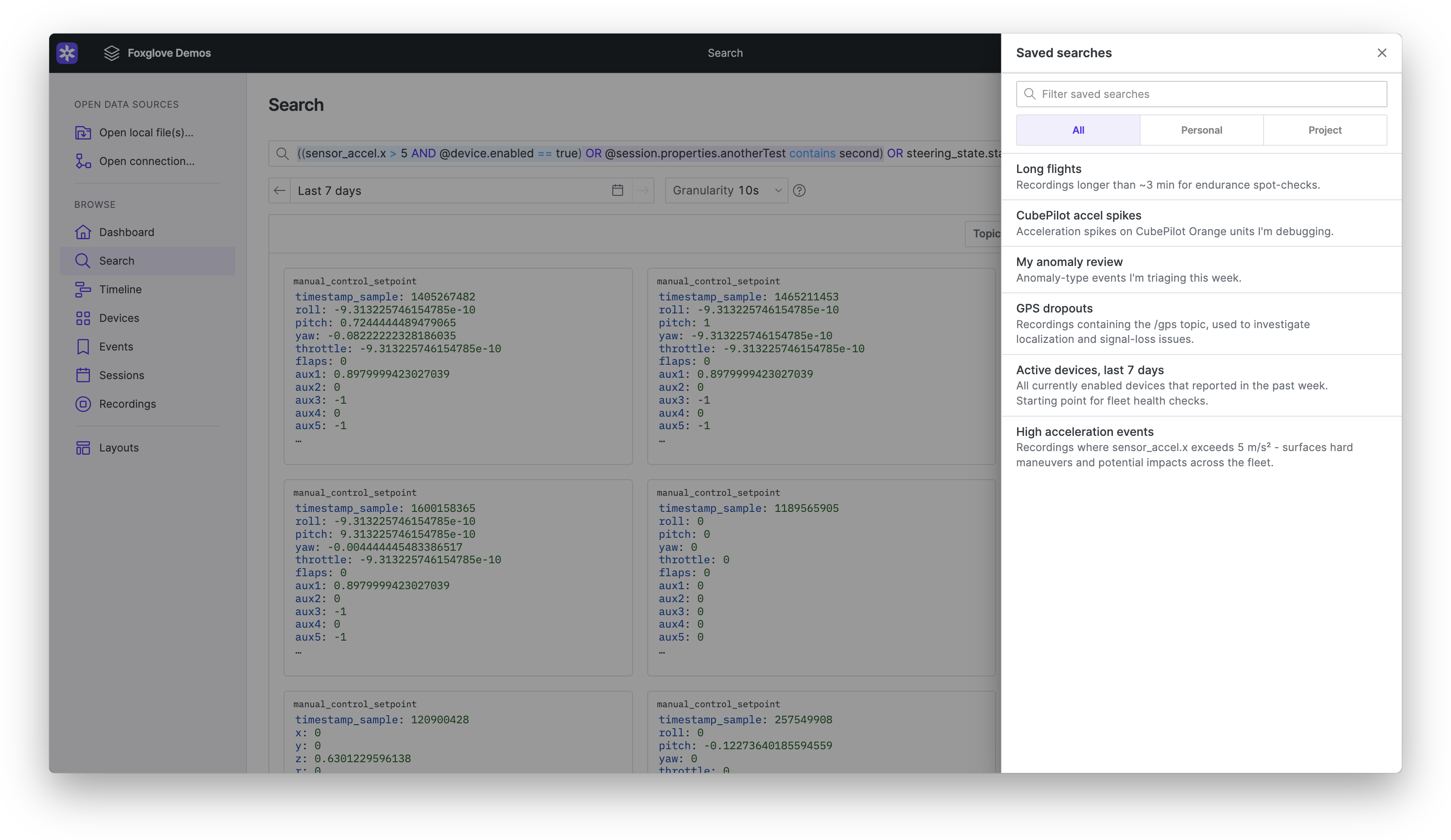
Click a saved search to load its query into the search bar and run it.
Editing and deleting saved searches
Click the edit icon on a saved search to change its name or description, or to delete it. You can edit or delete a saved search if you created it, or if you're an organization admin. The visibility and the query itself can't be changed after a search is saved.
Visualizing a match
From the Search page, open a result to visualize its recording with your query attached. In Gallery, select a card and click Visualize. In List, click a row; in Timeline, click a result.
Your matches appear above the playback bar, similar to events. Hover over a match to see its details.

Exporting results as CSV
Export Search results to a CSV file to work with them in a spreadsheet or script. Export is available in List and Gallery.
- Run a search and wait for it to finish.
- Select the results to export. In List, check each row. In Gallery, hover over a card and check its box. The checkbox in the toolbar selects or clears every result.
- Click Export CSV (the download icon) in the toolbar.
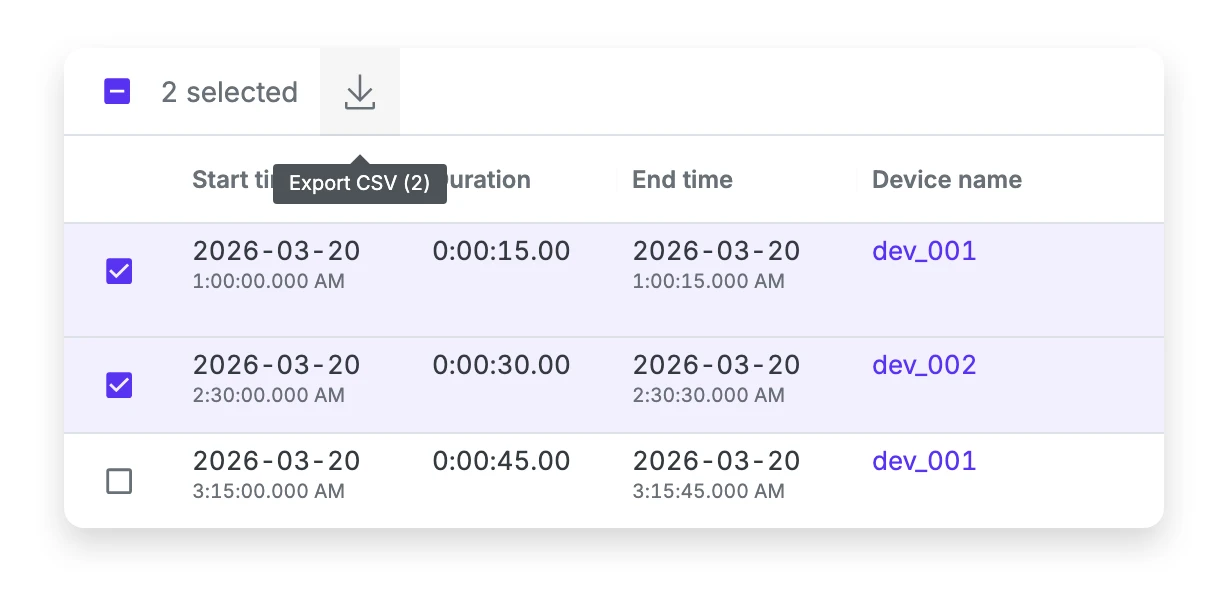
Export CSV stays disabled until you select at least one result and the search finishes. A canceled search can't be exported, so run it again first. Your selection carries over when you switch between List and Gallery, and clears when you run a new search.
The file has one row per selected result, in the order the search returned them. Sorting the view doesn't change the row order.
| Column | Contents |
|---|---|
start, end | The result's time range, as RFC 3339 timestamps |
device_id | The result's device ID |
recording_ids, session_ids, event_ids, event_type_ids | IDs of the recordings, sessions, events, and event types in the result |
topics | Topics in the result |
cosine_distance, best_match_time, best_match_topic | Match details for visual search results |
result_id | The result's ID |
episode_ids | IDs of episodes in the result, included only when your organization has Datasets |
A column that holds several values separates them with a semicolon (;).
Files are named foxglove-search-results-<timestamp>.csv, where the timestamp is the export time in UTC (for example, foxglove-search-results-2026-09-23T22-24-01Z.csv). If some sites failed to return results, the name ends in -partial.csv and the file contains only the results from sites that responded.
Starting a search from a panel
The Raw Messages panel can start a search from the message it's showing. "View in Search" appears in two places:
- Hover over a value in the message tree and click the search icon to search for that field and value.
- Click the search icon in the message header to search on the panel's path. If the path resolves to a single field, the query matches that field's value; otherwise it matches messages where the path has any value.
Either action opens the Search page with the query already built and the time range set to the recording's start and end. Edit the query before you run it — widen the time range, add a device condition, or relax the value — to find the same pattern across other recordings.
The hover icon appears only for values the query engine can search: a message field that resolves to a primitive scalar or an array of primitives. Hovering a nested message, a map, or an array of messages shows no icon. If the path carries a filter, the filter becomes an extra condition in the query.
Search covers the recordings indexed in your organization, so "View in Search" appears only when you're viewing a single recording stored in Foxglove. It doesn't appear for local files, remote file URLs, live connections, sample data, or Comparison mode.