ROS 1
- Open a live connection
- Play back recorded data
Visualize your robot live
The best way to visualize your live ROS 1 robot in Foxglove is using the Foxglove Bridge. It's written in C++ with sensible defaults to get you up and running quickly and is designed for high performance with low overhead. It's also highly configurable.
1. Run the Foxglove Bridge
The Foxglove Bridge for ROS 1 is distributed as a Docker image. Your robot needs no changes: the bridge container connects to your existing ROS 1 stack over normal ROS connections.
docker run --rm --network host \
  -e ROS_MASTER_URI=http://localhost:11311 \
  -e ROS_HOSTNAME=localhost \
  us-central1-docker.pkg.dev/foxglove-images/images/foxglove_bridge:ros-noetic-v0.0.0
Replace v0.0.0 with a valid release version. To run the bridge on a different host than your robot, point ROS_MASTER_URI at the robot's ROS master and set ROS_HOSTNAME to an address of the bridge host that the robot can reach.
The Foxglove Bridge will automatically subscribe to all topics in your ROS system and make them available for live visualization over WebSocket.
The Foxglove Bridge only supports ROS 1 Noetic.
2. Connect to your robot:
Ensure Foxglove Bridge is running.
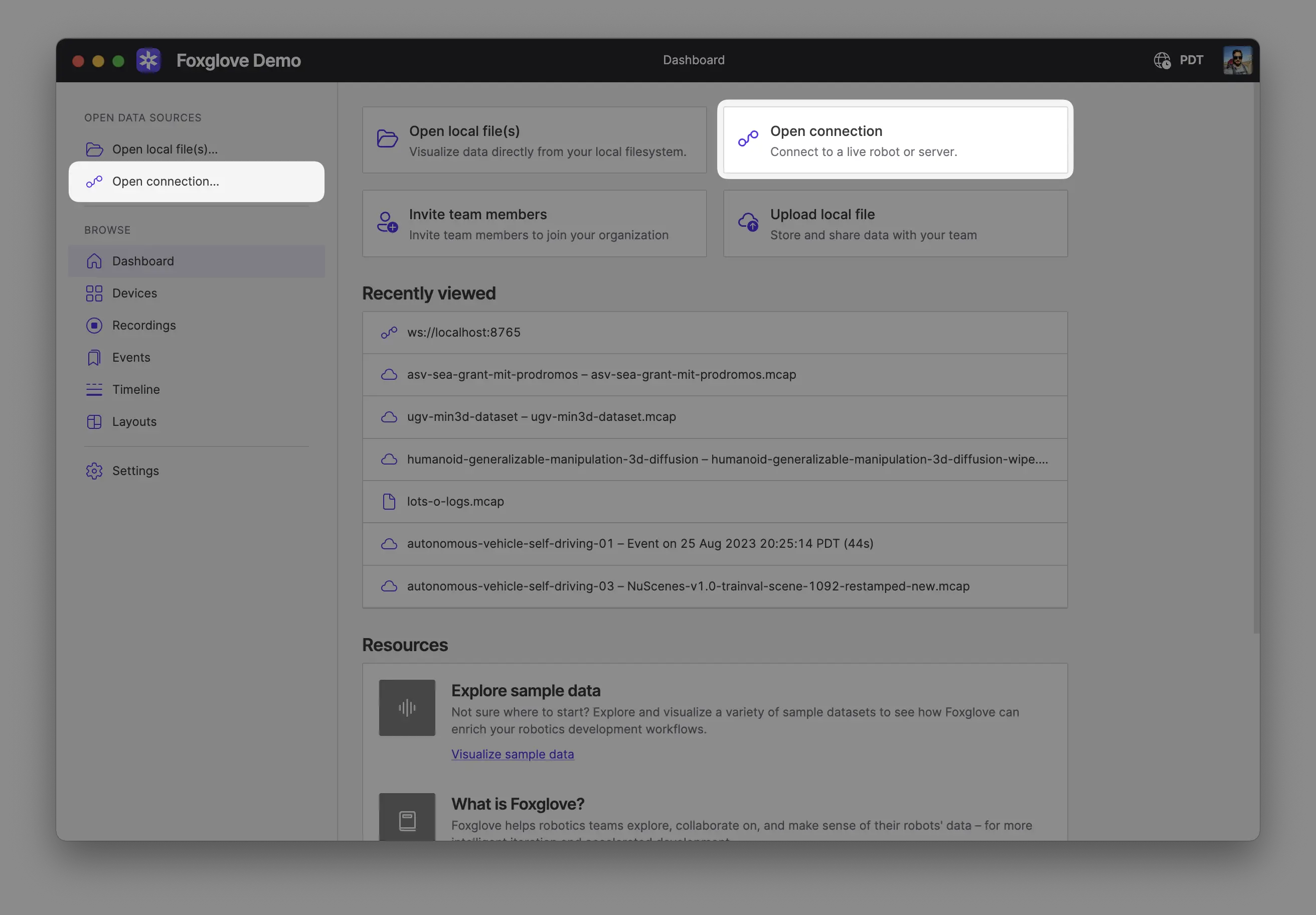
Make sure you are on the same network as your robot. In Foxglove, select Open connection from the dashboard or left-hand menu.
Select Foxglove WebSocket in the Open a new connection dialog, then enter the URL of the server:
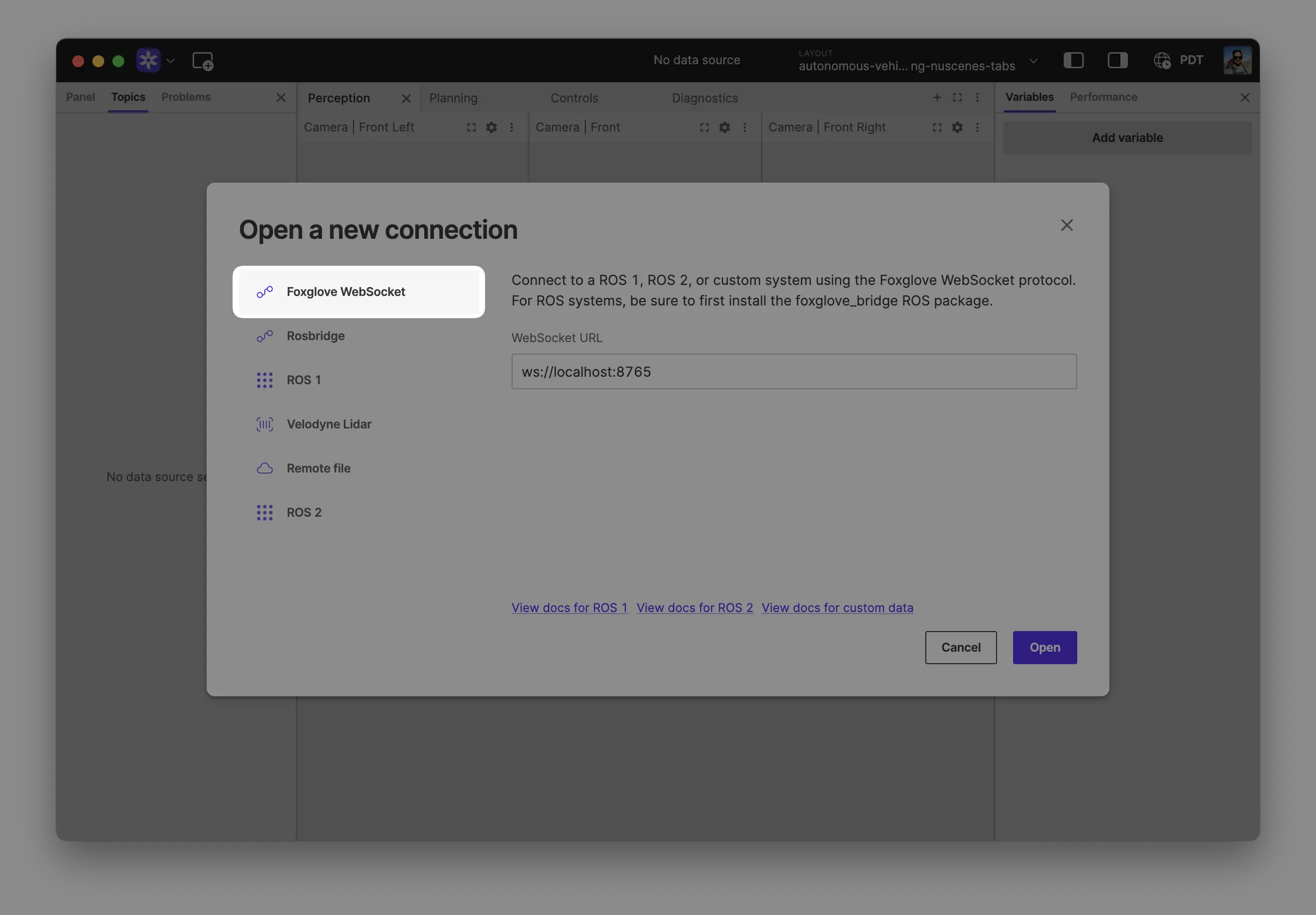
Click "Open" to connect.
Local development: Use ws://localhost:8765 when running the server on the same machine as Foxglove.
Robot connection: Use ws://ROBOT_IP:8765 when connecting to a server running on your robot, where ROBOT_IP is your robot's IP address on the network.
While Foxglove does support rosbridge and ROS 1 native connections, we recommend always using the Foxglove Bridge for the best features, performance, and stability.
Opening a rosbag
Foxglove can open .bag files natively. If you don’t have a .bag file, use the rosbag package to record data.
1. Record data
With your ROS stack running, record data on your robot:
rosbag record -a --duration=30
2. Open your recording
Open your recording(s) directly from your computer by:
- Dragging and dropping them into Foxglove
- Using
Cmd/Ctrl + o - Clicking Open local file(s) in the app
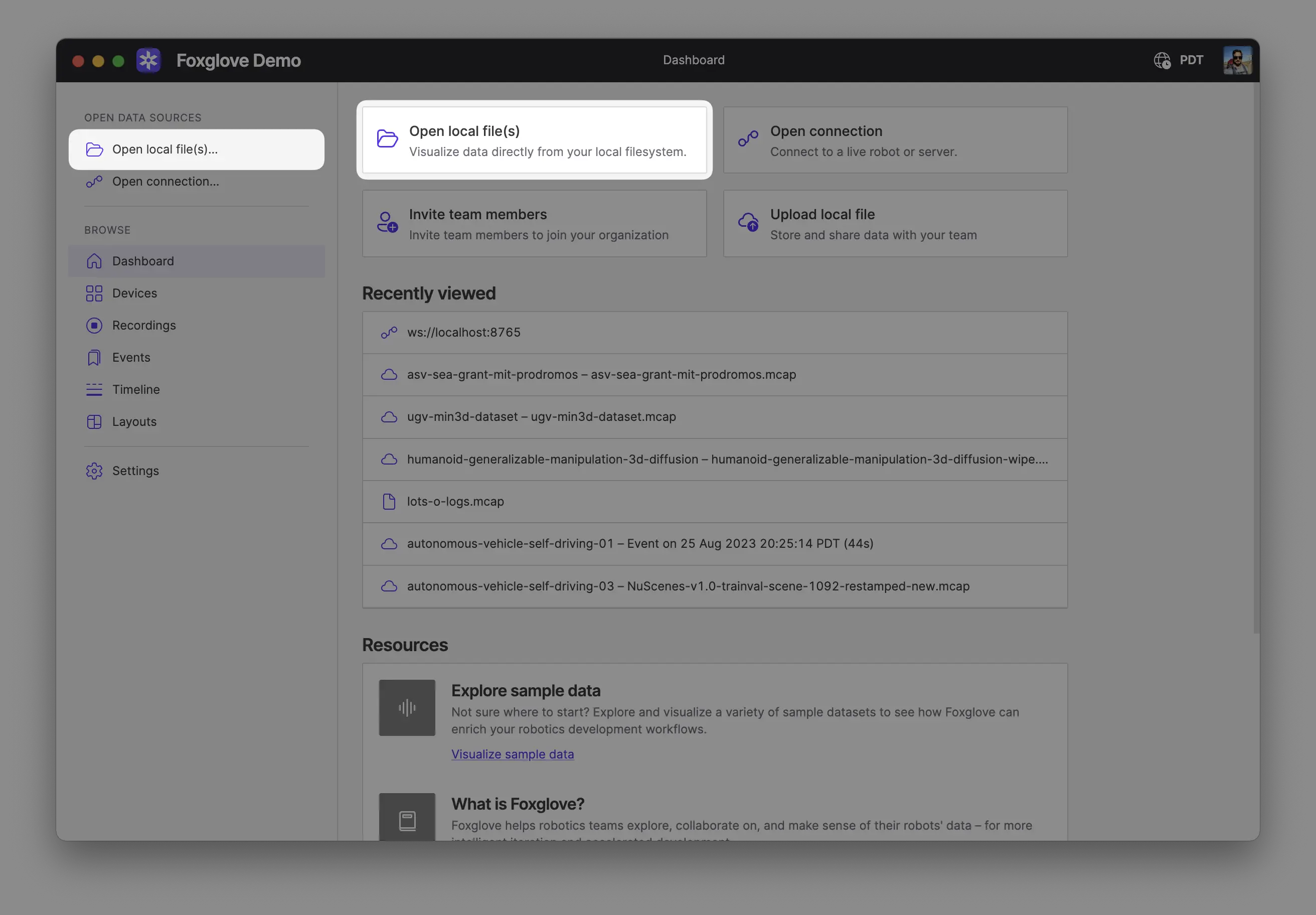
Opening multiple files together combines them into a single merged data source, as if they came from one recording. This is useful when the files belong to the same recording, for example a single recording split into multiple segments, or a main recording plus a related file such as a separate transforms log. The files must be of the same format.
To keep sources separate and view their data together on a shared timeline, use Comparison mode instead.
Explore your data
Your data is now available for exploring in Foxglove. Add some panels to begin visualizing what your robot is seeing and producing. Not sure where to start? Try adding a Raw Messages panel, Plot panel, or 3D panel.
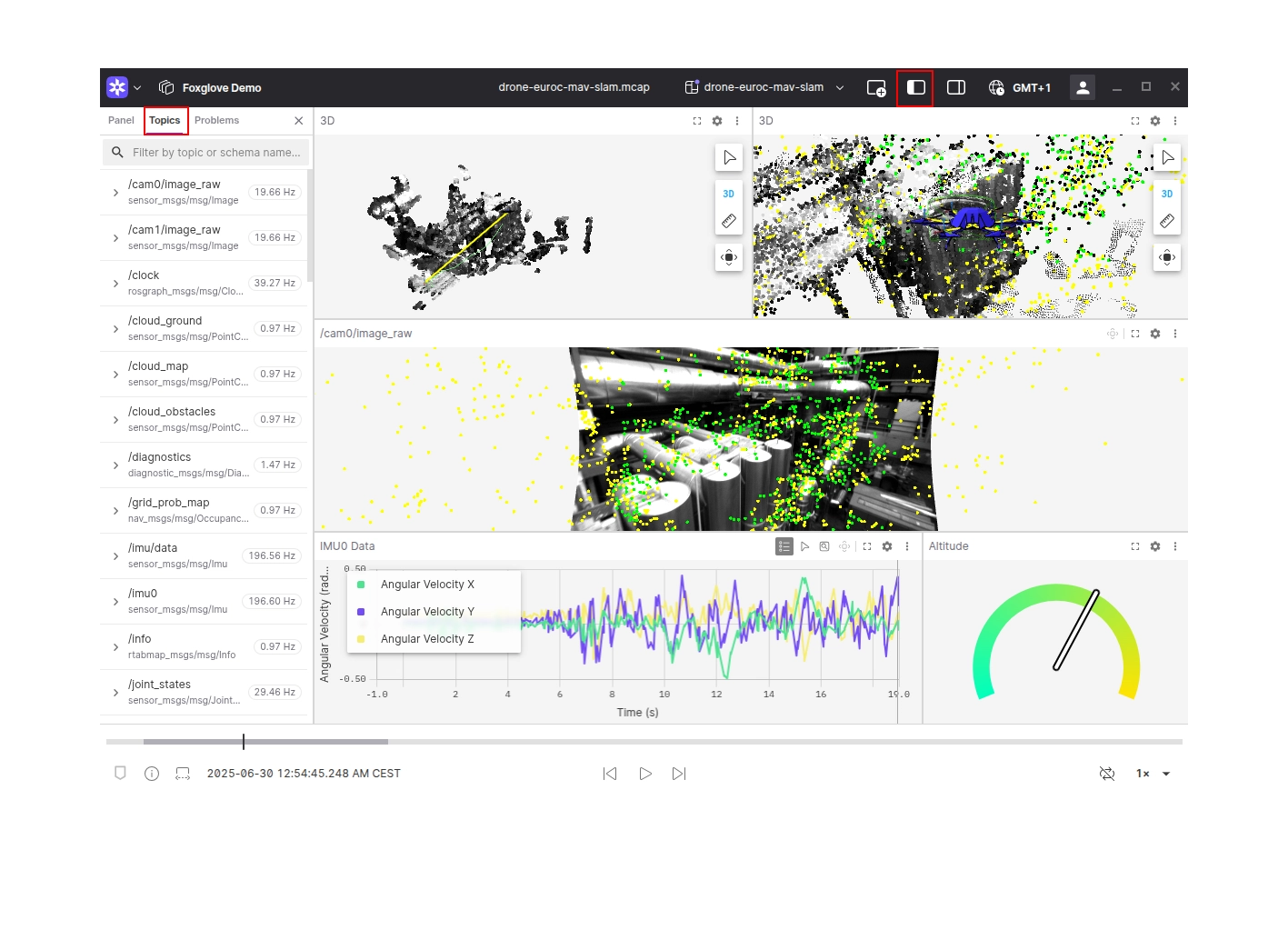
To list available topics, open the left sidebar and open the Topics tab.
Learn more
- Set up remote access to visualize and teleoperate your robot through the Foxglove platform without direct network access
- Explore all of the panels Foxglove has to offer for viewing and exploring data
- Create and save sets of panels and their setting as layouts to reuse them or share with teammates
- Use Foxglove Data Platform to store, stream, and share your robotics data
- Learn about all the configuration options available for Foxglove Bridge