Rust
Connect directly to Foxglove or play back local data recorded with the Rust SDK.
Install the SDK
Install foxglove from crates.io: https://crates.io/crates/foxglove
cargo add foxglove
If you want to try Foxglove with a new project, you can use these steps:
cargo new example --bin
cd example
cargo add foxglove
Live data
Log messages from Rust
Add the following to main.rs:
use std::{thread, time};

#[derive(foxglove::Encode)]
struct Message {
    elapsed: f64,
}

fn main() {
    foxglove::WebSocketServer::new()
        .start_blocking()
        .expect("Server failed to start");

    let start = time::SystemTime::now();
    loop {
        foxglove::log!(
            "/hello",
            Message {
                elapsed: start
                    .elapsed()
                    .expect("clock failed to elapse")
                    .as_secs_f64()
            }
        );
        thread::sleep(time::Duration::from_millis(30));
    }
}
Run the example
From the project directory:
cargo run
Connect
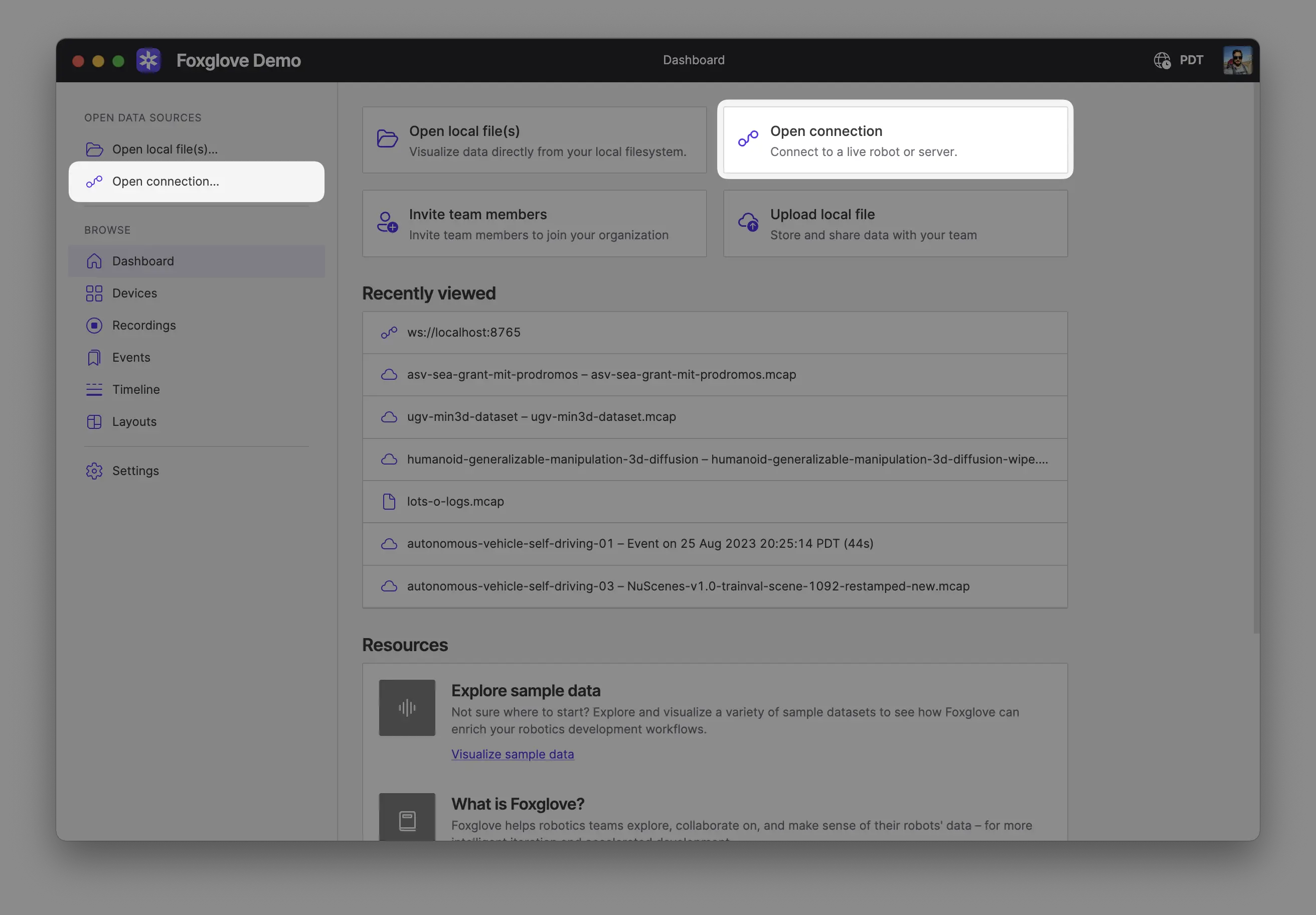
In Foxglove, select "Open connection" from the dashboard or left-hand menu.
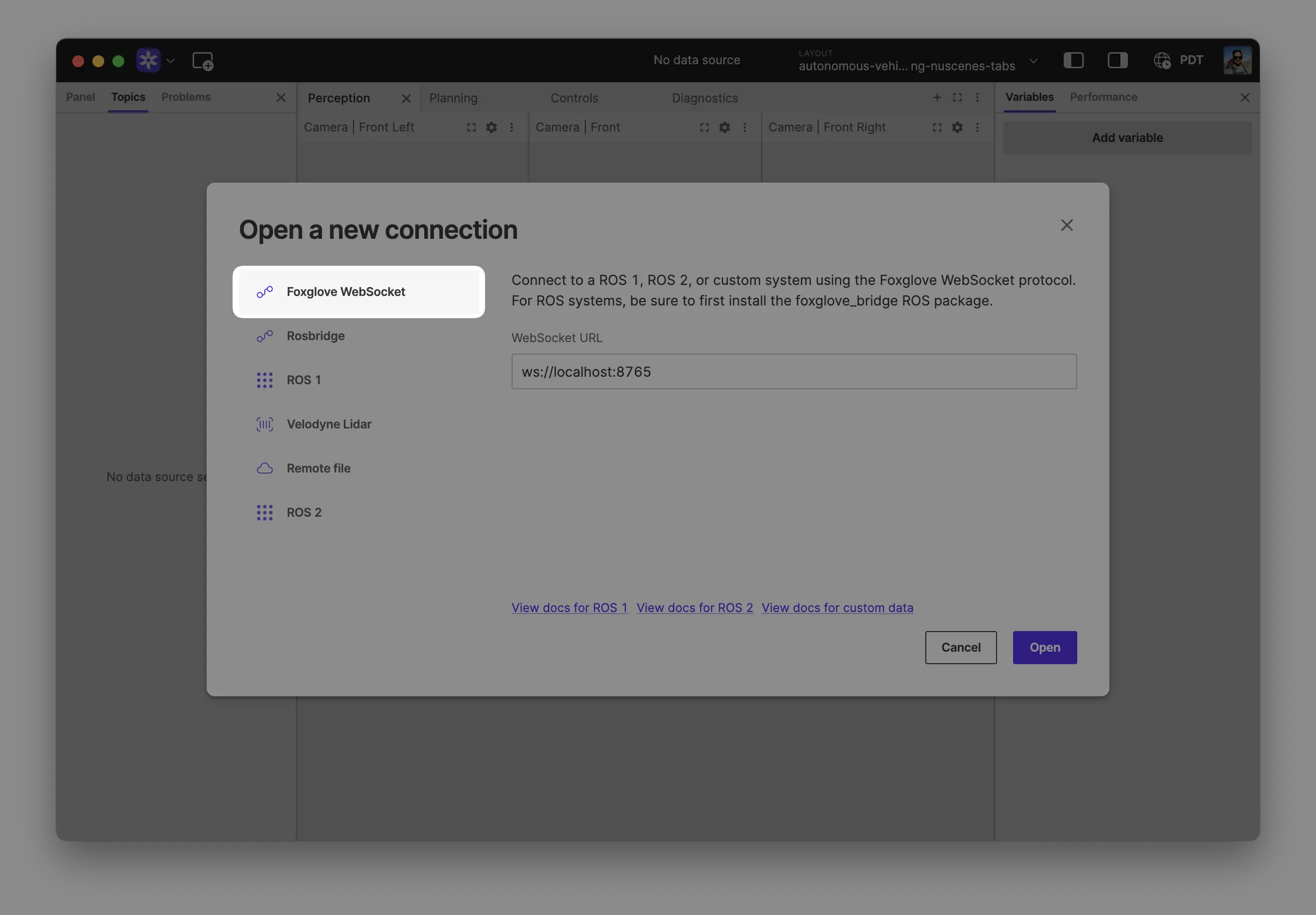
Select "Foxglove WebSocket" in the "Open a new connection" dialog, then click "Open" to accept the default connection string:
Local data
Recording data to a file
The SDK can also log data to disk. Let's augment the example above to also produce an MCAP file which can later be opened in Foxglove:
use std::{
    sync::{
        atomic::{AtomicBool, Ordering},
        Arc,
    },
    thread, time,
};

#[derive(foxglove::Encode)]
struct Message {
    elapsed: f64,
}

fn main() {
    foxglove::WebSocketServer::new()
        .start_blocking()
        .expect("Server failed to start");

    // Keep a reference to the writer. It'll automatically flush and close when it's dropped,
    // or we could call `.close()` to close it manually.
    // We use a named variable here to ensure it's dropped only at the end of the scope.
    let _writer = foxglove::McapWriter::new()
        .create_new_buffered_file("example.mcap")
        .expect("Failed to create writer");

    // Log until interrupted. We need a ctrlc handler here to ensure
    // that main() exits cleanly, dropping _writer before ending the process.
    let done = Arc::new(AtomicBool::default());
    ctrlc::set_handler({
        let done = done.clone();
        move || {
            done.store(true, Ordering::Relaxed);
        }
    })
    .expect("Failed to set SIGINT handler");

    let start = time::SystemTime::now();
    while !done.load(Ordering::Relaxed) {
        foxglove::log!(
            "/hello",
            Message {
                elapsed: start
                    .elapsed()
                    .expect("clock failed to elapse")
                    .as_secs_f64()
            }
        );
        thread::sleep(time::Duration::from_millis(30));
    }
}
Viewing data from a file
Open your recording(s) directly from your computer by:
- Dragging and dropping them into Foxglove
- Using
Cmd/Ctrl + o - Clicking Open local file(s) in the app
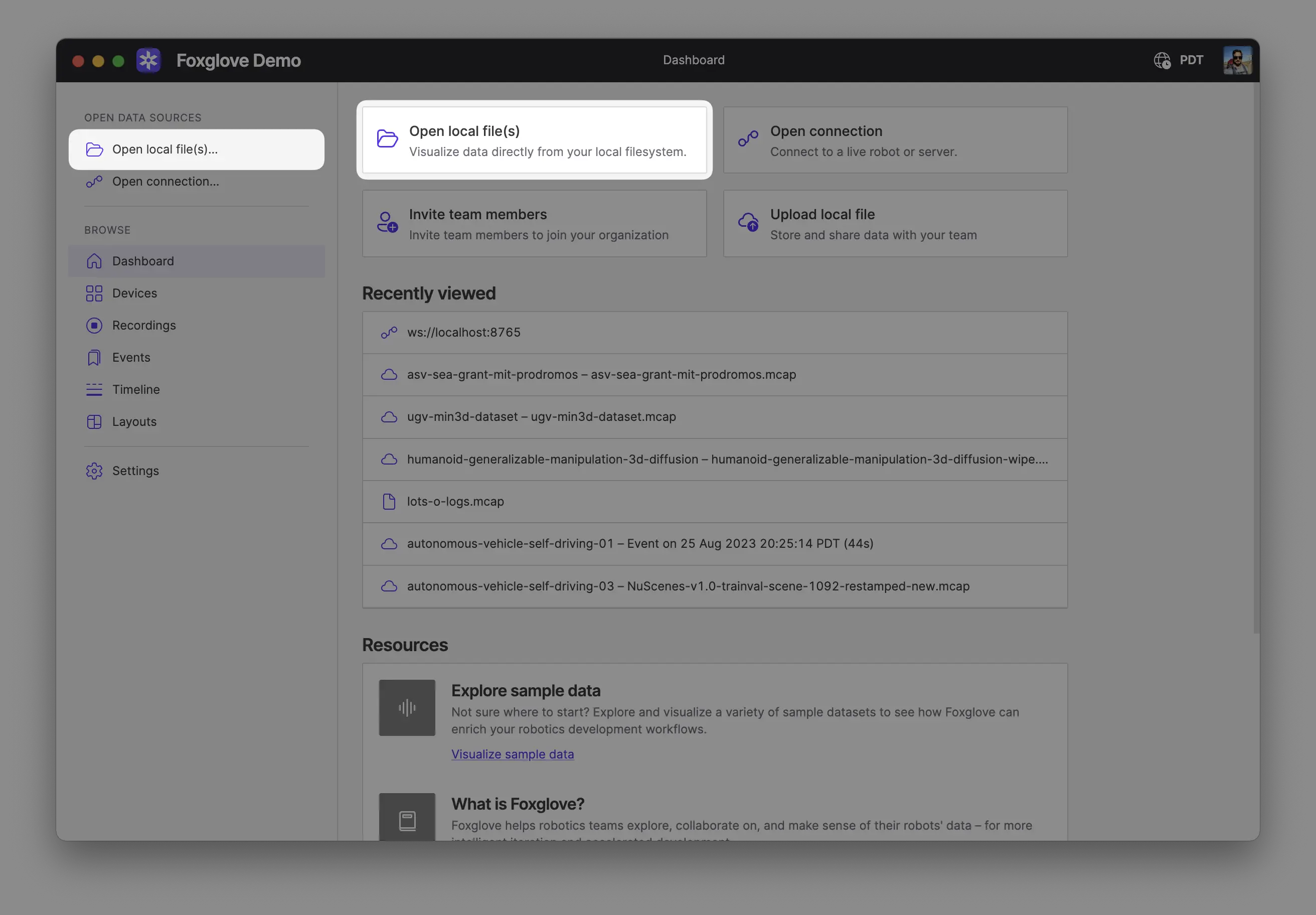
Opening multiple files together combines them into a single merged data source, as if they came from one recording. This is useful when the files belong to the same recording, for example a single recording split into multiple segments, or a main recording plus a related file such as a separate transforms log. The files must be of the same format.
To keep sources separate and view their data together on a shared timeline, use Comparison mode instead.
Explore your data
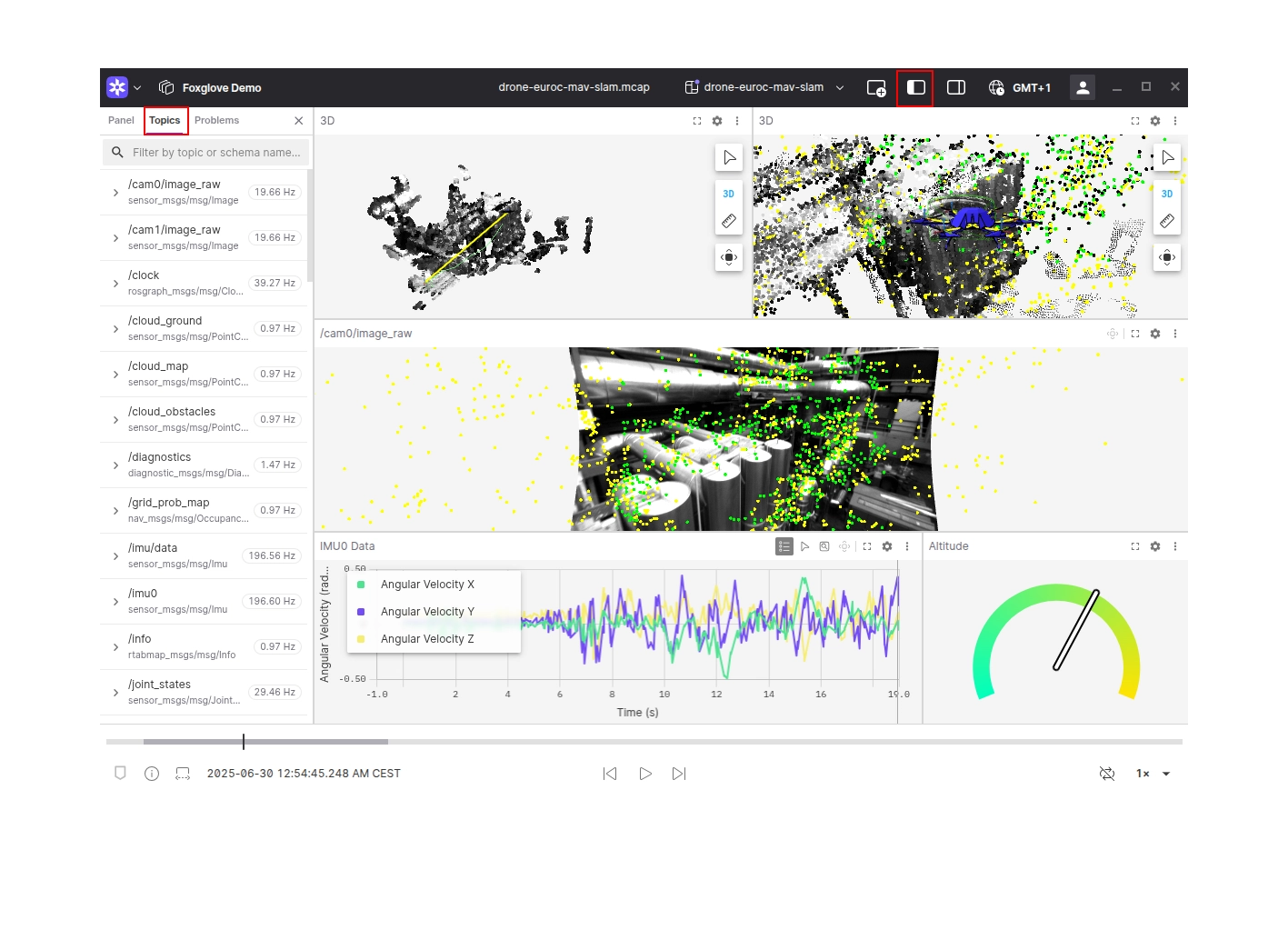
Your data is now available for exploring in Foxglove. Add some panels to begin visualizing what your robot is seeing and producing. Not sure where to start? Try adding a Raw Messages panel, Plot panel, or 3D panel.
To list available topics, open the left sidebar and open the Topics tab.
Links and resources
- SDK documentation with a more detailed example
- Rust reference
- Source code