LeRobot
Visualize LeRobot with Foxglove
As of LeRobot 0.6.0, Foxglove is a built-in visualization backend. Pass --display_mode=foxglove to lerobot-teleoperate, lerobot-record, or lerobot-rollout to stream live camera feeds and joint plots over WebSocket. Replay any recorded dataset as a seekable timeline with lerobot-dataset-viz --display-mode foxglove. No custom integration code is required.
The Native Foxglove Visualization in LeRobot blog post walks through teleoperation, recording, and dataset playback with videos.
This example uses an SO-101 arm. If you are using a different robot, adjust --robot.type, --teleop.type, and the related configuration for your hardware. Data will stream to Foxglove as expected for any LeRobot-supported robot as long as you pass --display_data=true and --display_mode=foxglove.
1. Install LeRobot
LeRobot requires Python 3.12+. Use uv to create a virtual environment and install from PyPI:
uv venv --python 3.12
source .venv/bin/activate
uv pip install 'lerobot[feetech,dataset_viz]'
The dataset_viz extra includes everything needed for Foxglove visualization. See the LeRobot installation guide for system dependencies and hardware setup.
2. Connect Foxglove
Start any LeRobot command with --display_mode=foxglove (live) or --display-mode foxglove (dataset replay). Data appears on ws://localhost:8765 as soon as the server starts.
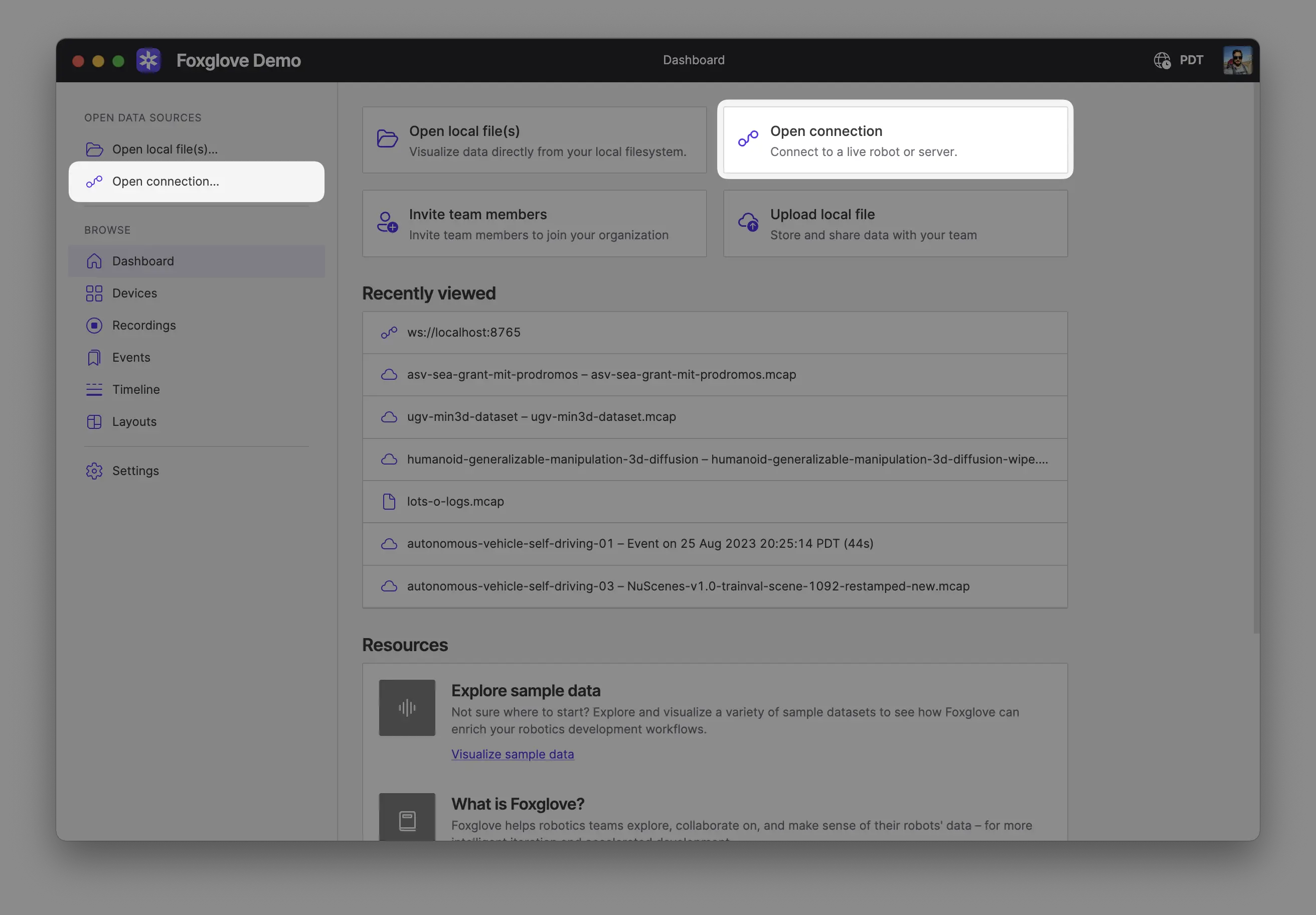
Make sure you are on the same network as your robot. In Foxglove, select Open connection from the dashboard or left-hand menu.
Select Foxglove WebSocket in the Open a new connection dialog, then enter the URL of the server:
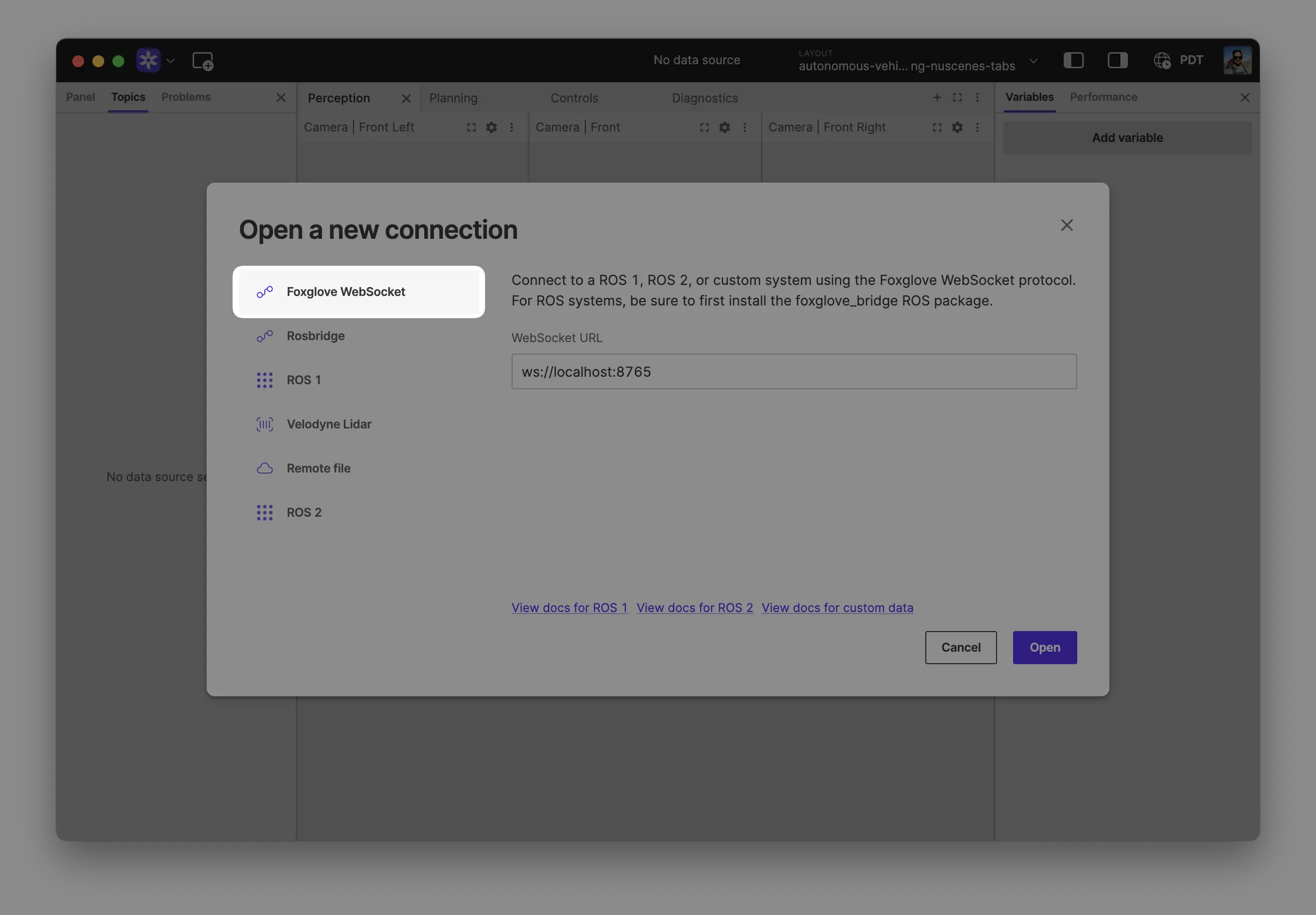
Click "Open" to connect.
Local development: Use ws://localhost:8765 when running the server on the same machine as Foxglove.
Robot connection: Use ws://ROBOT_IP:8765 when connecting to a server running on your robot, where ROBOT_IP is your robot's IP address on the network.
Import a starter layout from the Foxglove SDK examples or create your own.
3. Live visualization
Make sure your SO-101 hardware is set up and calibrated. When in doubt, follow the LeRobot SO-101 guide.
Pass --display_data=true --display_mode=foxglove to stream observations, actions, and camera feeds in real time:
uv run lerobot-teleoperate \
  --robot.type=so101_follower \
  --robot.port=/dev/tty.usbmodemFOLLOWER \
  --robot.id=my_follower \
  --robot.cameras="{ front: {type: opencv, index_or_path: 0, width: 640, height: 480, fps: 30}}" \
  --teleop.type=so101_leader \
  --teleop.port=/dev/tty.usbmodemLEADER \
  --teleop.id=my_leader \
  --display_data=true \
  --display_mode=foxglove
Replace the USB port paths with your device paths (find them with lerobot-find-port). Camera IDs come from lerobot-find-cameras opencv.
Live data is published on these topics:
| Topic | Contents |
|---|---|
/observation/state | Per-joint observation values (named series for Plot panels) |
/action/state | Teleoperator or policy action targets |
/observation/images/<camera> | Camera frames (RawImage or compressed JPEG) |
The same flags work for lerobot-record and lerobot-rollout. During recording, live visualization helps catch bad camera framing or joint limits before you finish an episode.
4. Dataset replay
lerobot-dataset-viz serves any LeRobot dataset — from the Hugging Face Hub or recorded locally — as a seekable timeline in Foxglove:
# A public dataset from the Hub
uv run lerobot-dataset-viz \
  --repo-id lerobot/svla_so101_pickplace \
  --episode-index 0 \
  --display-mode foxglove

# A dataset you recorded locally
uv run lerobot-dataset-viz \
  --repo-id ${HF_USER}/my-dataset \
  --root ~/.cache/huggingface/lerobot/${HF_USER}/my-dataset \
  --episode-index 0 \
  --display-mode foxglove
The Foxglove playback bar drives play, pause, seek, and speed. Dataset replay uses the same topics as live streaming, plus /episode/state for episode metadata.
Live commands use underscores (--display_mode, --display_data) while lerobot-dataset-viz uses hyphens (--display-mode). This matches each tool's CLI convention.
5. Common options
| Goal | Live commands | Dataset replay |
|---|---|---|
| JPEG-compress images | --display_compressed_images | --display-compressed-images |
| Custom port | --display_port=8766 | --web-port 8766 |
| Stream to another machine | --display_ip=0.0.0.0 | --host 0.0.0.0 |
| Don't auto-play on connect | — | --no-autoplay |
When streaming to another machine, connect Foxglove to ws://<robot-ip>:8765 instead of localhost.