Tab panel
Group related panels into tabs to organize your layout.
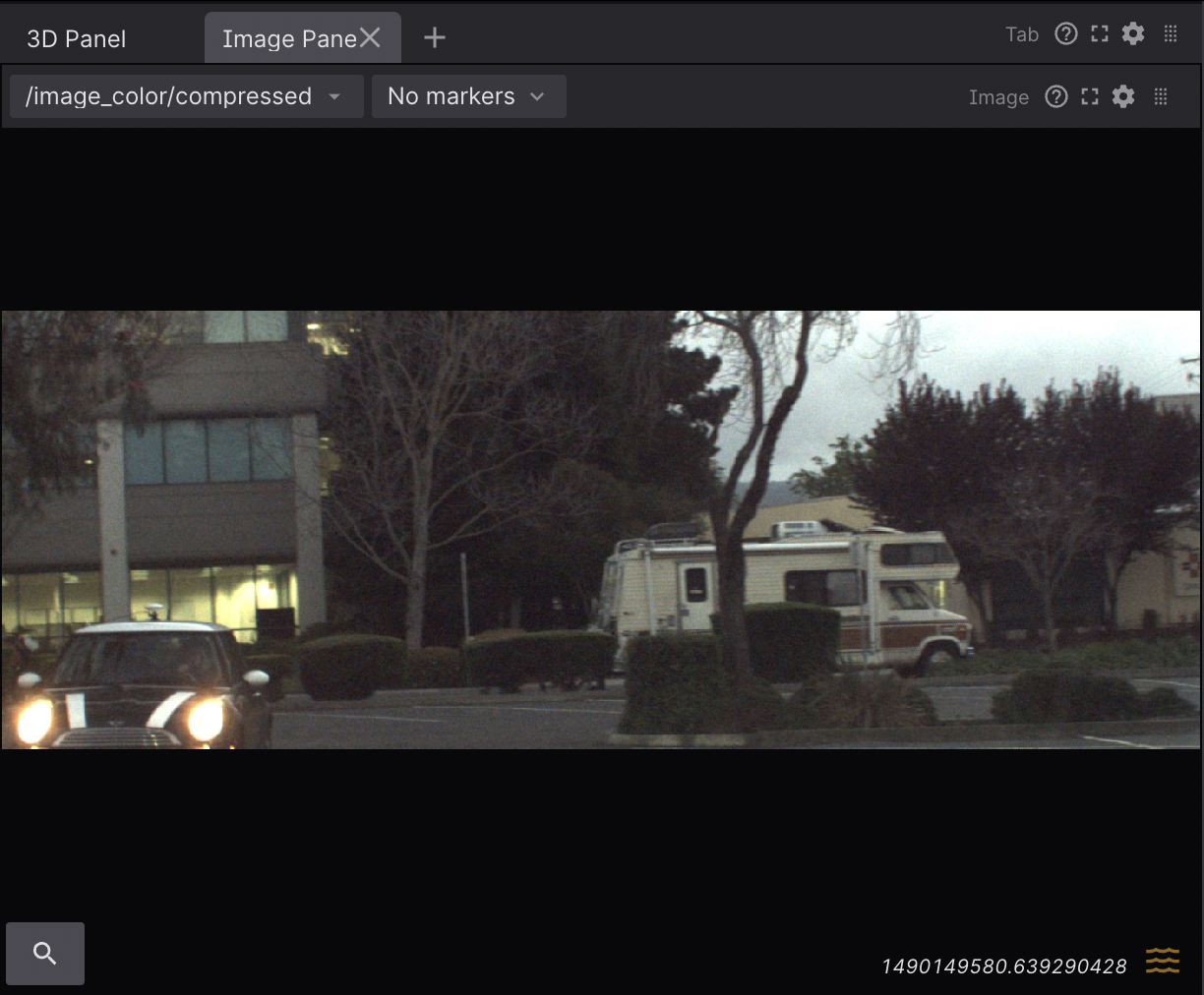
Creating tabs
From existing panels
- Select panels using
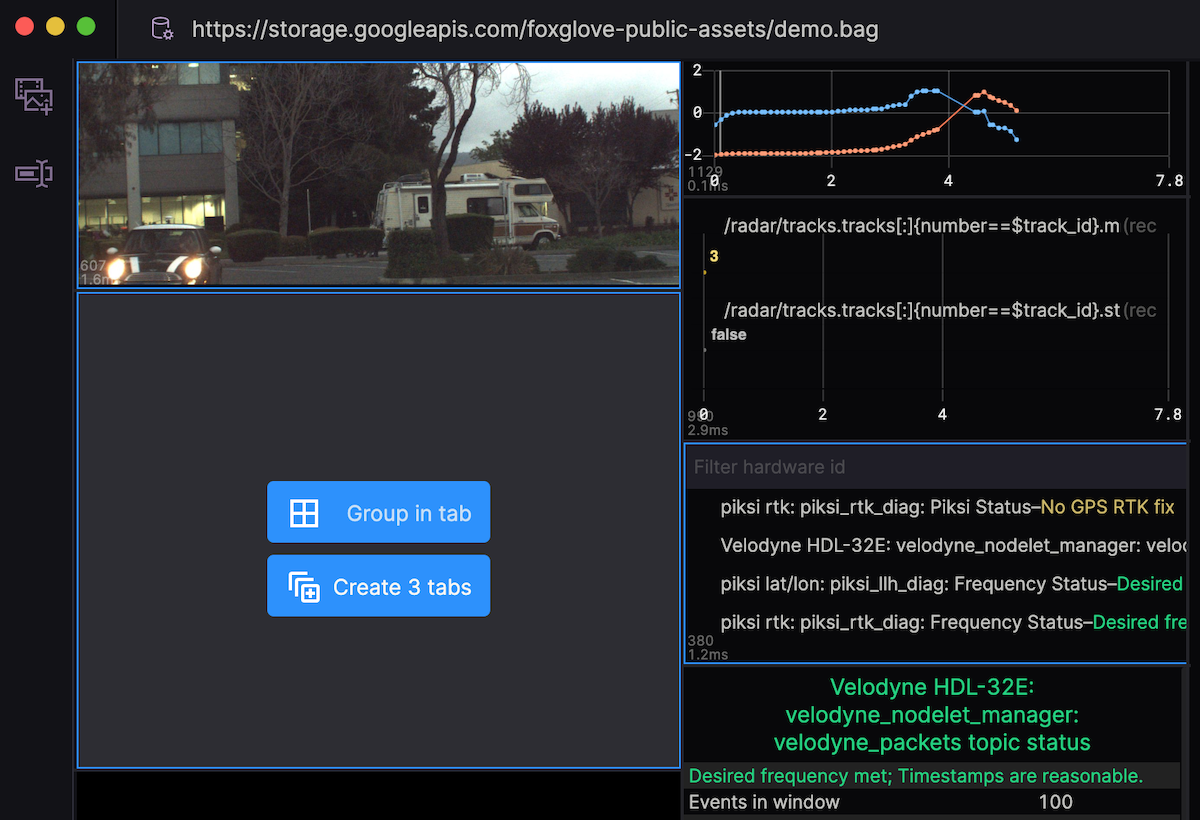
Cmd+ click (orCmd+ato select all) - Hover over any selected panel to see grouping options:
- Group in tab – Combines panels under a single tab (for related panels that move together)
- Create x tabs – Creates separate tabs for each panel (to save space)
tip
Panel multi-selection is disabled when the Panel settings sidebar is open.
From scratch
Add a Tab panel from the sidebar's "Add panel" menu, then:
- Add child panels from the menu or drag existing panels into it
- Click tab names to rename them
- Use the plus icon to add more tabs
- Drag tabs to reorder within or across Tab panels
From other tabs
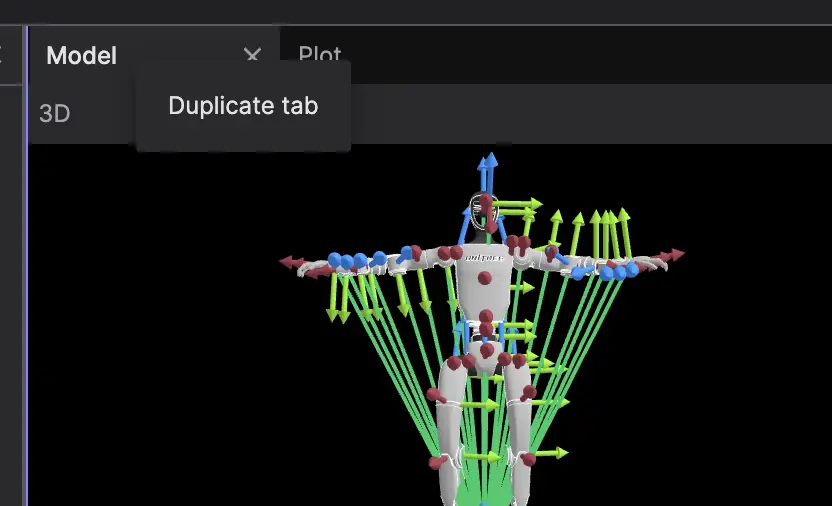
- Right-click on a tab and select "Duplicate tab" from the menu.
- Drag an existing tab while holding the
Optionkey on macOS or theAltkey on Windows & Linux to create a copy.
Copying tabs between layouts
You can copy tabs to your clipboard and paste them into any Tab panel, even in different layouts:
- Right-click on a tab and select "Copy tab" from the menu
- Navigate to another layout or Tab panel
- Right-click on a tab or the empty tab bar area and select "Paste tab"
The pasted tab includes all panel configurations, so you can reuse complex setups across layouts without recreating them manually.