Comparison mode
You can open two or more data sources on a shared playback timeline while keeping each source distinct using comparison mode. This is useful when the sources share topics and you want to view the data together, either overlaid or side-by-side. For example, comparing a run before and after a code change, or aligning a simulation against a real-world log.
Because comparison mode can pull data from different devices, it is an excellent fit for multi-device workflows. Select sessions and events from separate robots to unlock comparing like topics, overlaid or side-by-side.
Starting a comparison
On the Recordings, Sessions, or Events pages, select two or more items and click Compare.
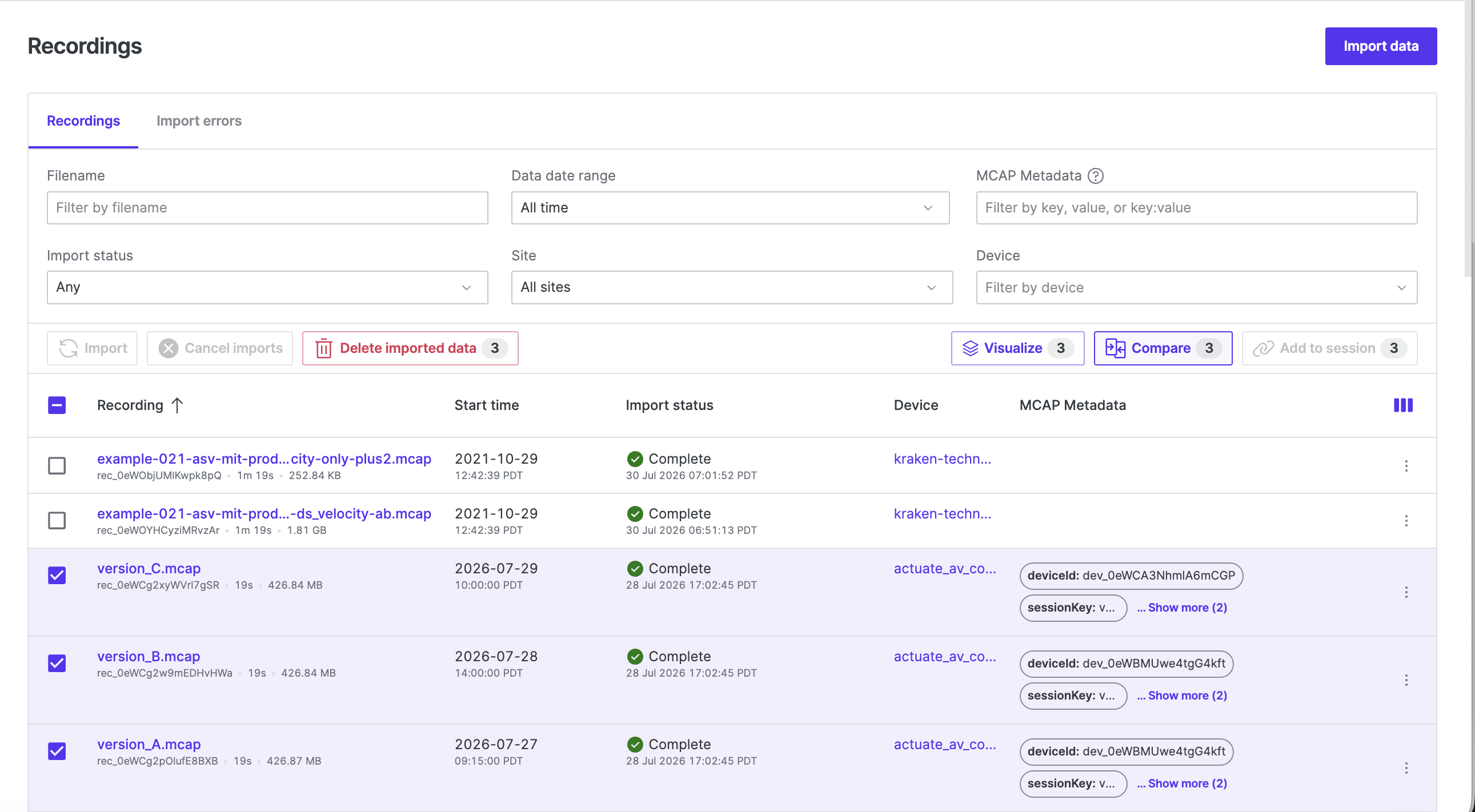
To open local files straight into comparison mode, click Compare local files on the dashboard, Compare local files… in the nav menu under Open data sources, or run Compare local files… from the command palette, then select two or more files of the same type.
Opening local files any other way — Open local file(s), Ctrl + O / Cmd + O, or dragging files into Foxglove — merges them by default. To split a merged set into slots, open the Sources sidebar and set Source mode to Compare at the top, or run Switch to compare from the command palette.
While a recording, session, or event is open, the command palette’s Add comparison source… command searches for another item of the same kind and adds it as a comparison slot. Add source adds local files to the current selection.
Reading the comparison
Each item you compare (such as a recording, session, or event) is a source. Each source occupies a slot labeled A, B, C, and so on, assigned in the order you select them. Slot badges appear next to the source name in the top bar, in Plot and State Transitions legends and series settings, in the Sources sidebar, and in the scrubber tooltip. Map represents each slot with a distinct color instead of a badge.
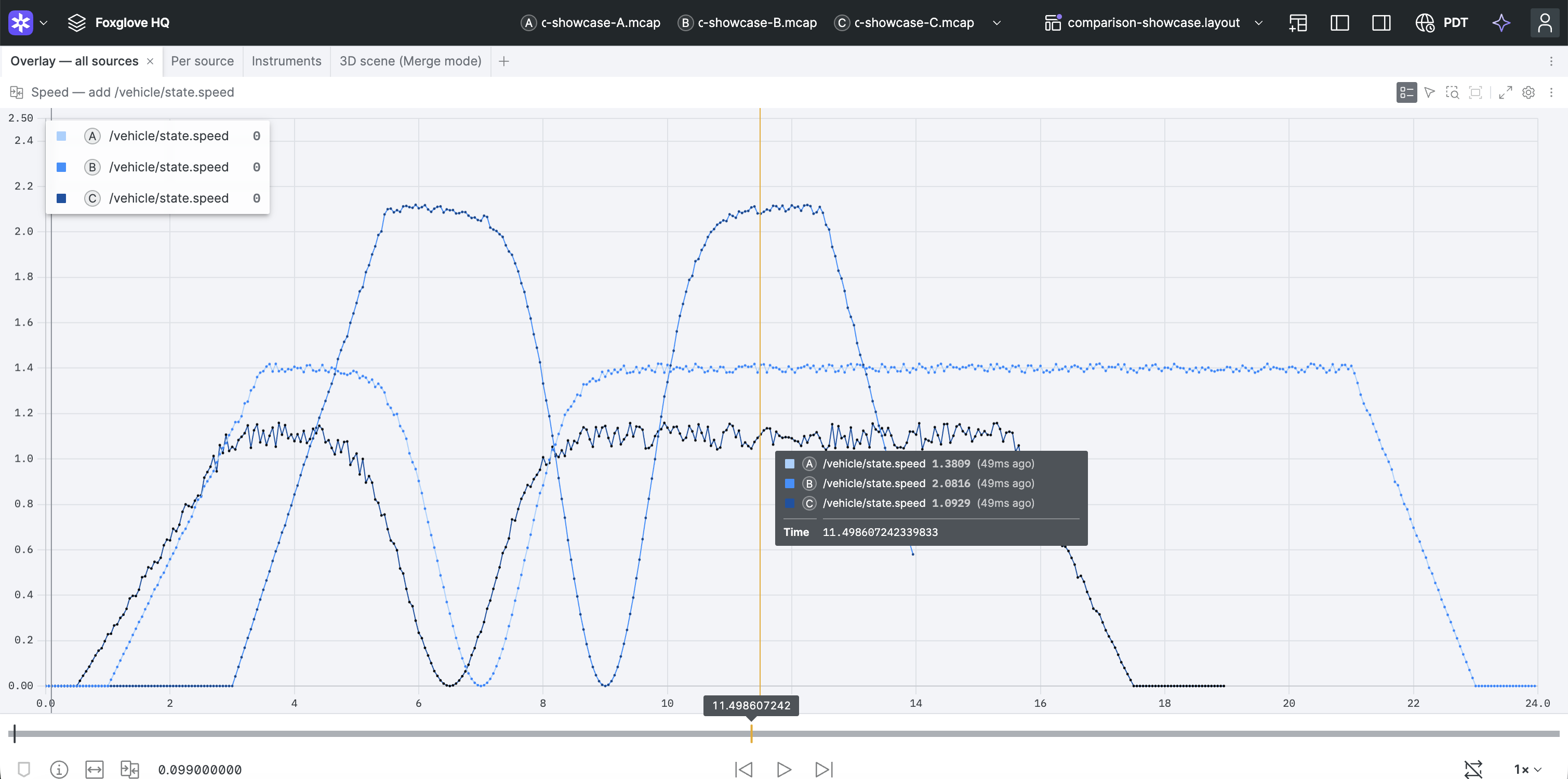
Some panels, such as 3D, Plot, State Transitions, and Map, are multi-source: they can render every source at once. Others are single-source: they display one source at a time. Both types have a data source picker in the panel toolbar. Use it to choose Compare all or one slot in a multi-source panel, or to switch a single-source panel between slots.
Hovering a slot accents the matching slot and dims the other sources' data in multi-source panels, so you can pick out one source's data. The slot badges themselves stay visible.
Adjusting a comparison
Every source begins at time zero on the shared timeline, regardless of when it was originally recorded. Shift a source's start time to align two sources recorded at different real-world times.
Open the Sources sidebar to:
- Add local files. Click Add in the footer, or run Add source from the command palette. Local-file comparisons only.
- Add a cloud source. Run Add comparison source… from the command palette and choose a recording, session, or event of the same kind.
- Remove a source. Click × next to its heading and confirm, or run Remove source… from the command palette.
- Reorder slots and change start times. Click Manage in the footer (or the compare icon on the playback bar), or run Adjust comparison from the command palette, to open the editor. Drag rows in the editor to reorder slots, type new offsets in each row's field, or drag each source's bar on the playback timeline to shift its start time. While adjusting, use each row's snap buttons, or
Shift+Alt+arrow (Shift+Option+arrow on macOS) with a source hovered or its offset field focused, to align a source's start or end with the playback head. Dragging a bar also snaps to the playback head. Use the reset button to clear a source's offset. - Switch merge and compare. Use Source mode at the top of the Sources sidebar, or run Switch to compare / Switch to merge from the command palette.
Setting a source's start time before time zero re-anchors the whole set. The earliest source moves to zero, and every other source shifts by the same amount.
Hovering the playback scrubber shows the Elapsed time followed by each source's local timestamp.
