Personal access tokens
Use a personal access token to call the Foxglove API from your own scripts. Each token is tied to your membership in the organization where you create it. Its access is limited by both the capabilities you select and your current role, seat, and Project access. It stops working if you leave the organization.
Open Settings → Personal access tokens.
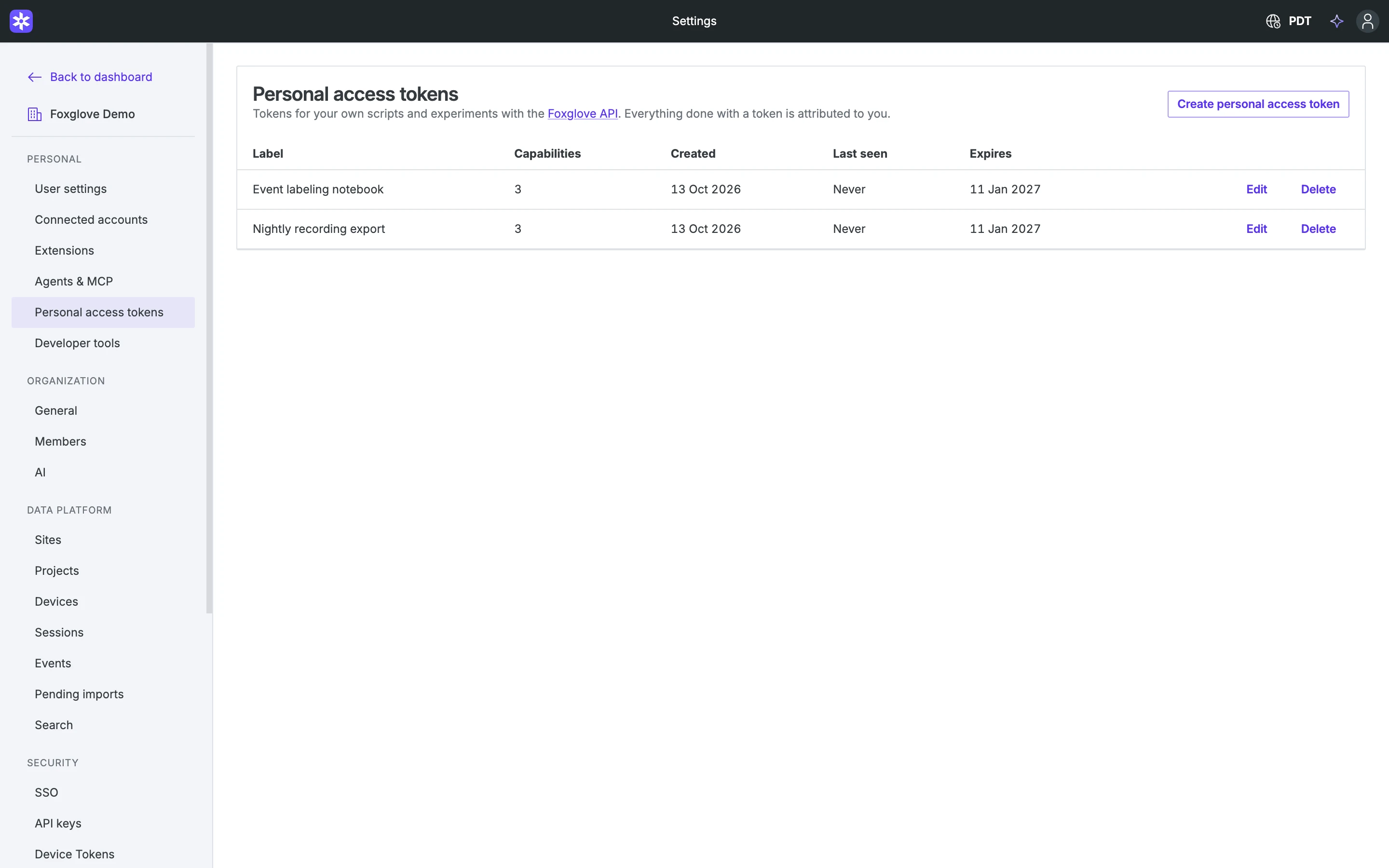
Create and use a token
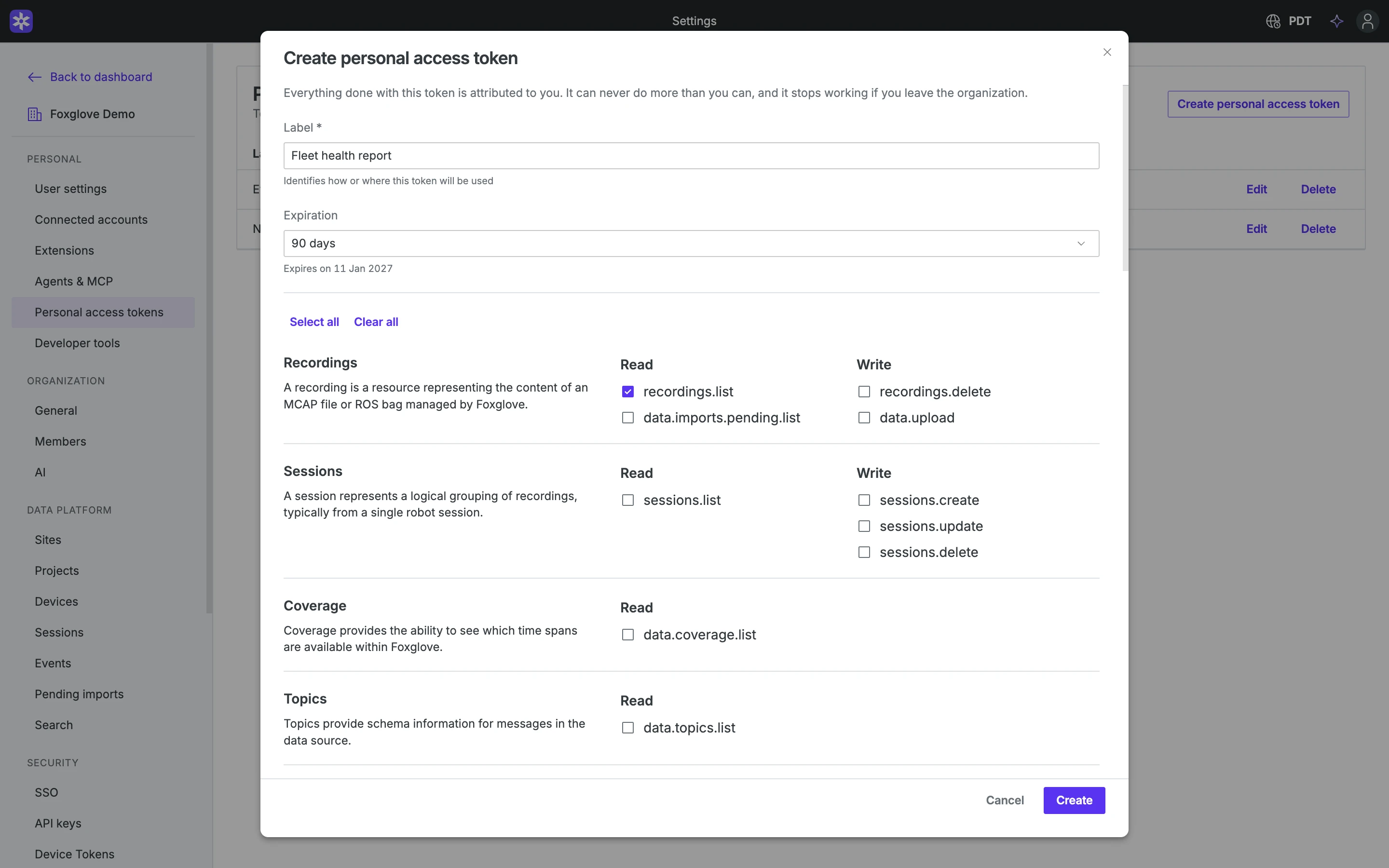
- Click Create personal access token.
- Enter a Label that identifies the script or workflow that will use it.
- Choose an Expiration. The default is 90 days. Choose Never for no expiration date.
- Select the Capabilities the script needs. Capabilities that your plan, role, or seat doesn't allow show why you can't select them. Personal access tokens can't manage credentials, including creating other tokens, so the list doesn't show those capabilities.
- Click Create and copy the secret. It appears only once, so store it securely.
Send the secret in the Authorization: Bearer <token> header when calling the API. Keep it out of source control and logs. Requests use your organization's API rate limit, with an additional limit shared by all your personal access tokens.
Actions made with a personal access token are attributed to you. Supported audit events also identify which token performed the action.
Edit, replace, or delete a token
Click Edit beside an unexpired token to change its capabilities, then click Save. The secret stays the same. Saving removes any selected capabilities that your current plan, role, or seat no longer permits.
To change a token's label or expiration, or replace an expired token, create a replacement. Replace it before it expires to avoid interrupting your scripts:
- Create a token with the required capabilities.
- Update your scripts to use the replacement and confirm they work.
- Wait until the existing token's Last seen date stops changing, then click Delete and confirm. Last seen shows only the date, so a token used earlier today still shows today's date.
Deleting a token permanently revokes its access. Cached authentication can take about 10 seconds to expire, and download URLs already issued keep their own expiration times. You can manage tokens only from your signed-in session. A personal access token or API key can't create, edit, or delete personal access tokens.
You can have up to 50 personal access tokens per organization. Expired tokens count toward this limit until you delete them.
Plan changes
Personal access tokens are available on Pro, Enterprise, and Academic plans. On other plans, the Personal access tokens page shows an upgrade prompt instead of Create personal access token. Admins can follow it to billing settings, and other members are asked to contact an admin.
If your organization moves to a plan without personal access tokens, existing tokens stop working on the next request. Requests made with them fail with a 403 error and the code PersonalApiKeysPlanRequired. You can still see and delete them, but not edit them. Tokens you don't delete work again after the organization upgrades.