Gallery
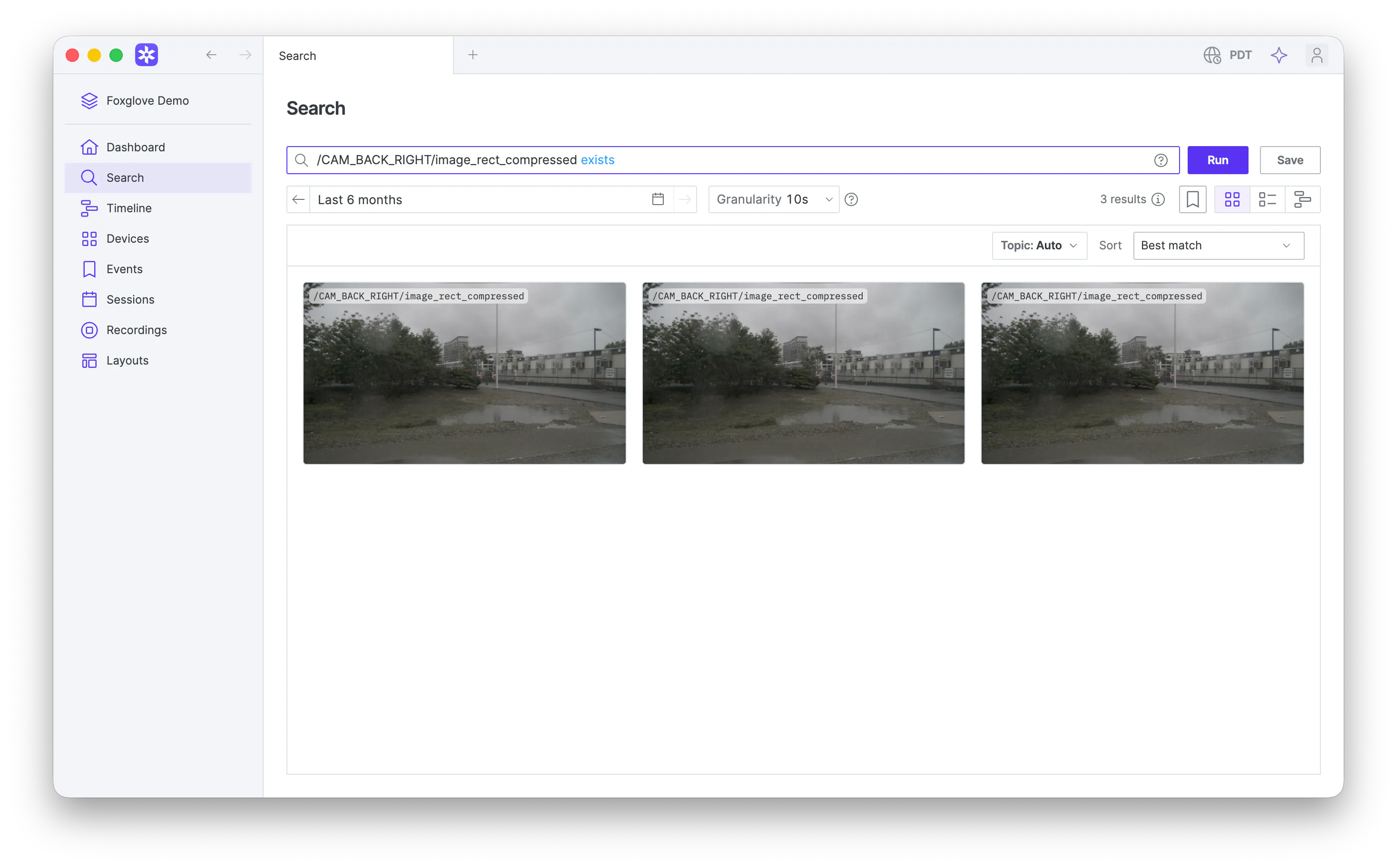
Gallery helps you decide which Search results to open in visualization. Each card shows a sample of the data associated with that result.
Gallery is the default Search view. Use the view toggle to switch between Gallery, List, and Timeline.
A preview represents only part of a result's data and may include nearby context. Open the result in visualization to inspect the underlying data in panels.
Choose preview topics
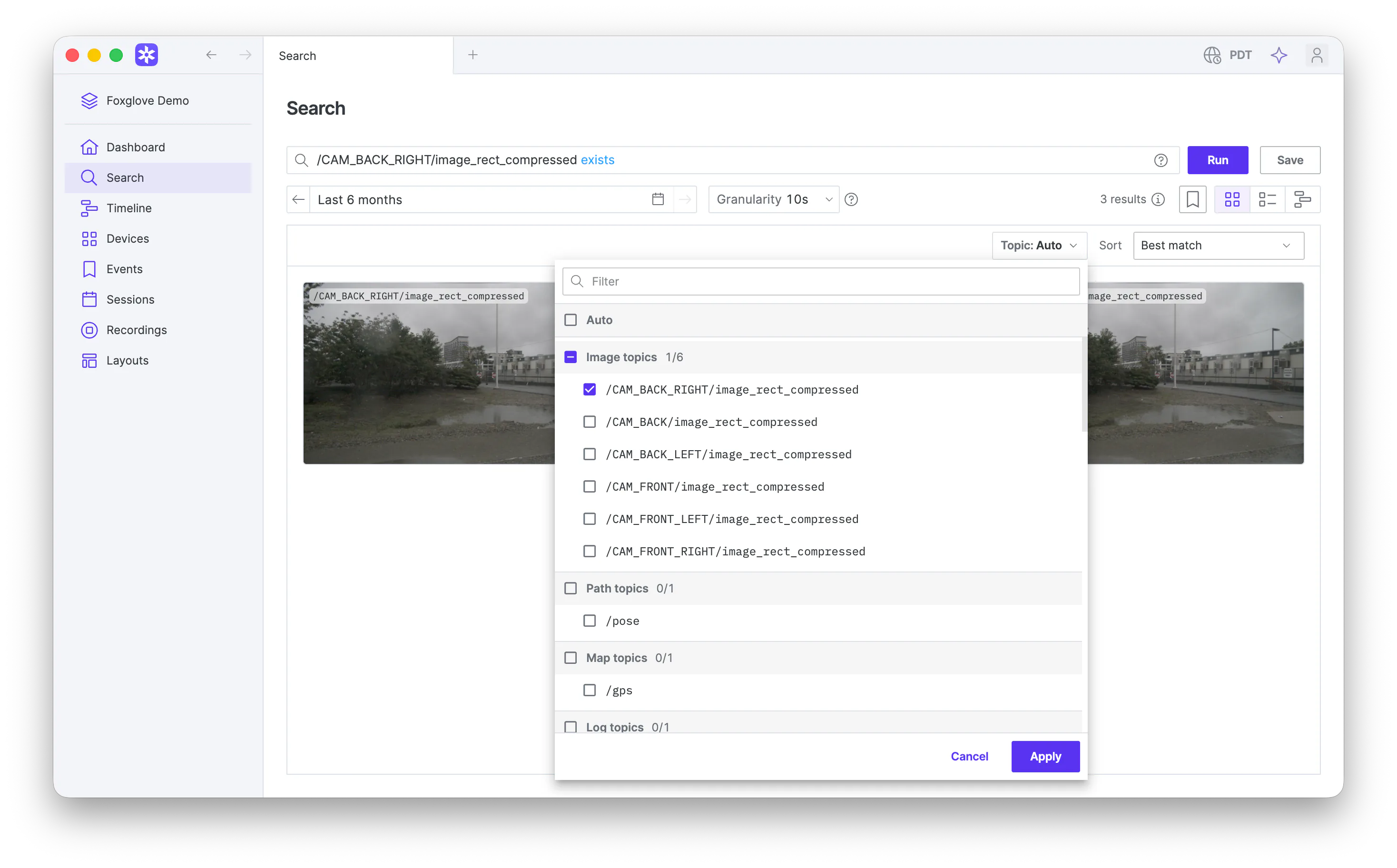
With Topic: Auto, Gallery uses the query and compatible topics to choose a preview for each result. Different results can use different topics or preview types. To choose preview topics:
- Open the Topic menu.
- Filter the available topics if needed.
- Select one or more topic categories or individual topics.
- Click Apply.
The menu lists topics from the query and current results. A result that doesn't contain any selected topic shows a Preview unavailable message. Select Auto to restore automatic selection.
Your selection is part of the page URL, so a copied or bookmarked link opens Gallery with the same preview topics. A link that carries no selection opens with Auto.
Preview types
Gallery supports these preview types:
| Topic category | Preview |
|---|---|
| Image topics and Video topics | A representative frame or short clip |
| Path topics | A robot trajectory in local coordinates |
| Map topics | A trajectory on a geographic map |
| Plot topics | Numeric values over time |
| Gauge topics | A gauge for the latest numeric value near the result |
| State transition topics | Changes between discrete values |
| Log topics | Log messages near the result |
| Other topics | Decoded fields from a raw message |
Gallery identifies most rich previews from the topic's schema. It can also use a numeric field from the current query for Plot previews or FoxQL expressions from your layouts for Gauge and State transition previews.
Gallery doesn't use schema converters or extension panels for previews. For other decodable schemas, it shows raw message fields.
View supported schemas and mappings
Gallery supports these schemas and field mappings. The list names each schema once. For example, sensor_msgs/Image, sensor_msgs/msg/Image, ros.sensor_msgs.Image, and sensor_msgs::msg::dds_::Image_ are the ROS 1, ROS 2, Protobuf, and raw DDS names for the same schema.
- Image:
sensor_msgs/CompressedImage,sensor_msgs/Image,foxglove.CompressedImage, andfoxglove.RawImage. - Video:
foxglove.CompressedVideo. - Path:
nav_msgs/Odometry,geometry_msgs/PoseStamped,geometry_msgs/PoseWithCovarianceStamped,geometry_msgs/PoseArray,nav_msgs/Path,foxglove.PoseInFrame, andfoxglove.PosesInFrame. - Map:
sensor_msgs/NavSatFix,gps_common/GPSFix,gps_msgs/GPSFix,foxglove.LocationFix, andfoxglove.LocationFixes. - Plot:
std_msgs/Float32,std_msgs/Float64, or a single message field on the topic compared with<,<=,>, or>=in the current query. - Gauge: A FoxQL expression from a Gauge panel in a recent personal or shared layout.
- State transition:
std_msgs/Bool,std_msgs/Byte,std_msgs/Char,std_msgs/Int8,std_msgs/Int16,std_msgs/Int32,std_msgs/Int64,std_msgs/UInt8,std_msgs/UInt16,std_msgs/UInt32,std_msgs/UInt64, or a FoxQL expression from a State Transitions panel in a recent personal or shared layout. - Log:
foxglove.Log,rosgraph_msgs/Log,rcl_interfaces/msg/Log, orstd_msgs/String. - Other: Any decodable schema; Gallery shows its raw message fields.
Inspect result details
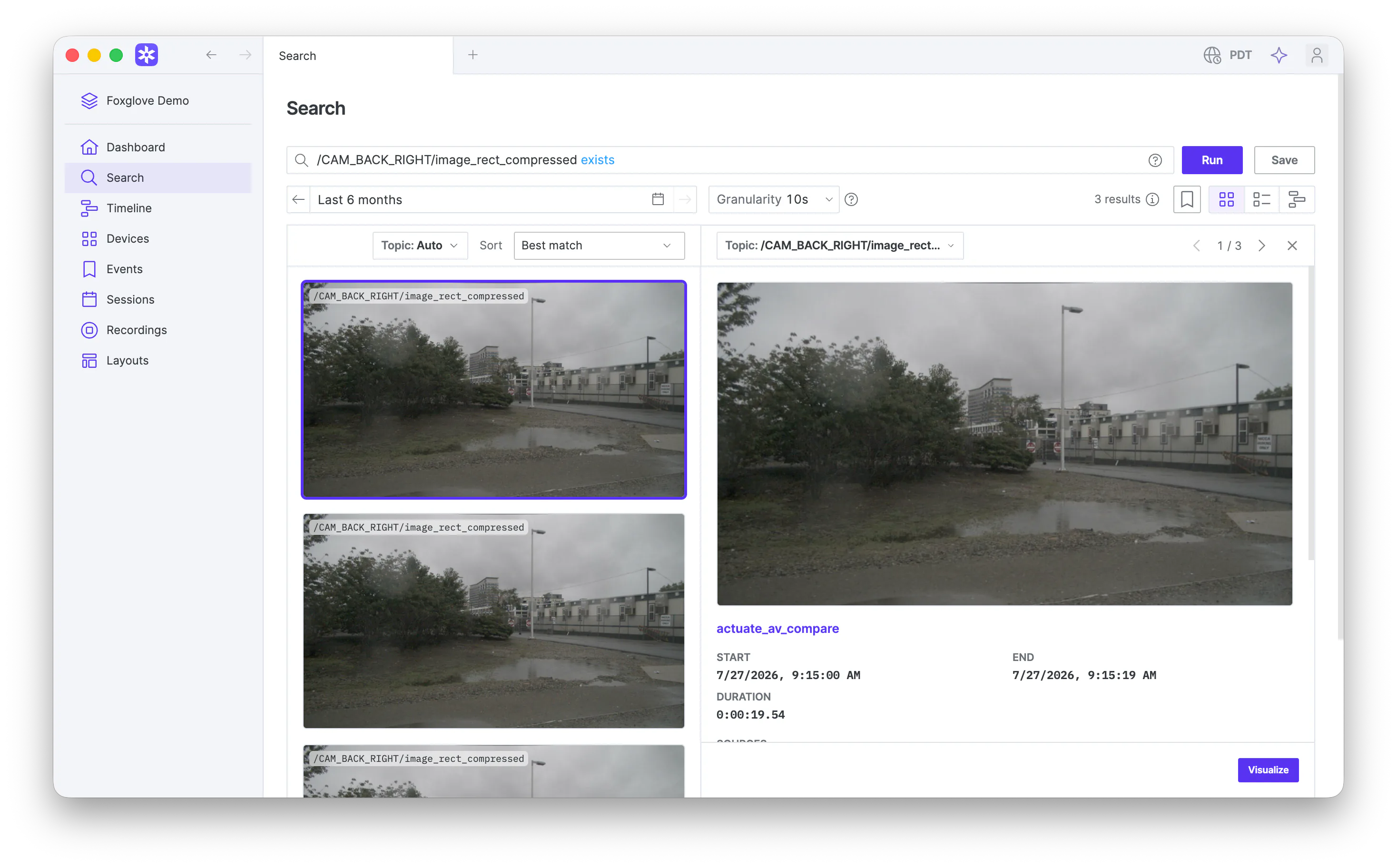
Click a card to open its details. The sidebar shows a larger preview, the result's time range, matching topics, sources, and related metadata. Use the arrow buttons or arrow keys to move between results.
Open a result in visualization
When available, click Visualize in a result's details to open it in visualization.
To open visualization in a background tab instead, Command-click the card on macOS, Control-click it on Windows or Linux, or middle-click it.
Troubleshoot unavailable previews
Preview unavailable doesn't mean the search result is invalid. A preview can be unavailable when:
- The selected topic is not present in that result.
- The topic's schema or image encoding is not supported for previews.
- The preview window contains no usable messages.
- An error prevented the preview from loading.
Try Auto or another topic. If Retry appears, click it.