Manage episodes
Create episodes from your recorded data and add them to a dataset in one step. Then review them before training to catch missing data, trim idle time, and remove examples you don't want.
Create episodes
You create episodes from data already in Foxglove: search results, recordings, sessions, events, or a range you mark during playback. Most of them can add the new episodes to a dataset in the same step. An episode's recordings must all come from the same device, or all have no device, and must all be imported to the same Primary Site.
Create episodes from search results
Use Search to find data across a Project, such as events tagged as failed grasps. On the Search page, select the results you want and click Add to dataset.
- In the Dataset field, choose a dataset. To start a new one, type its name and choose the option that begins with Create new.
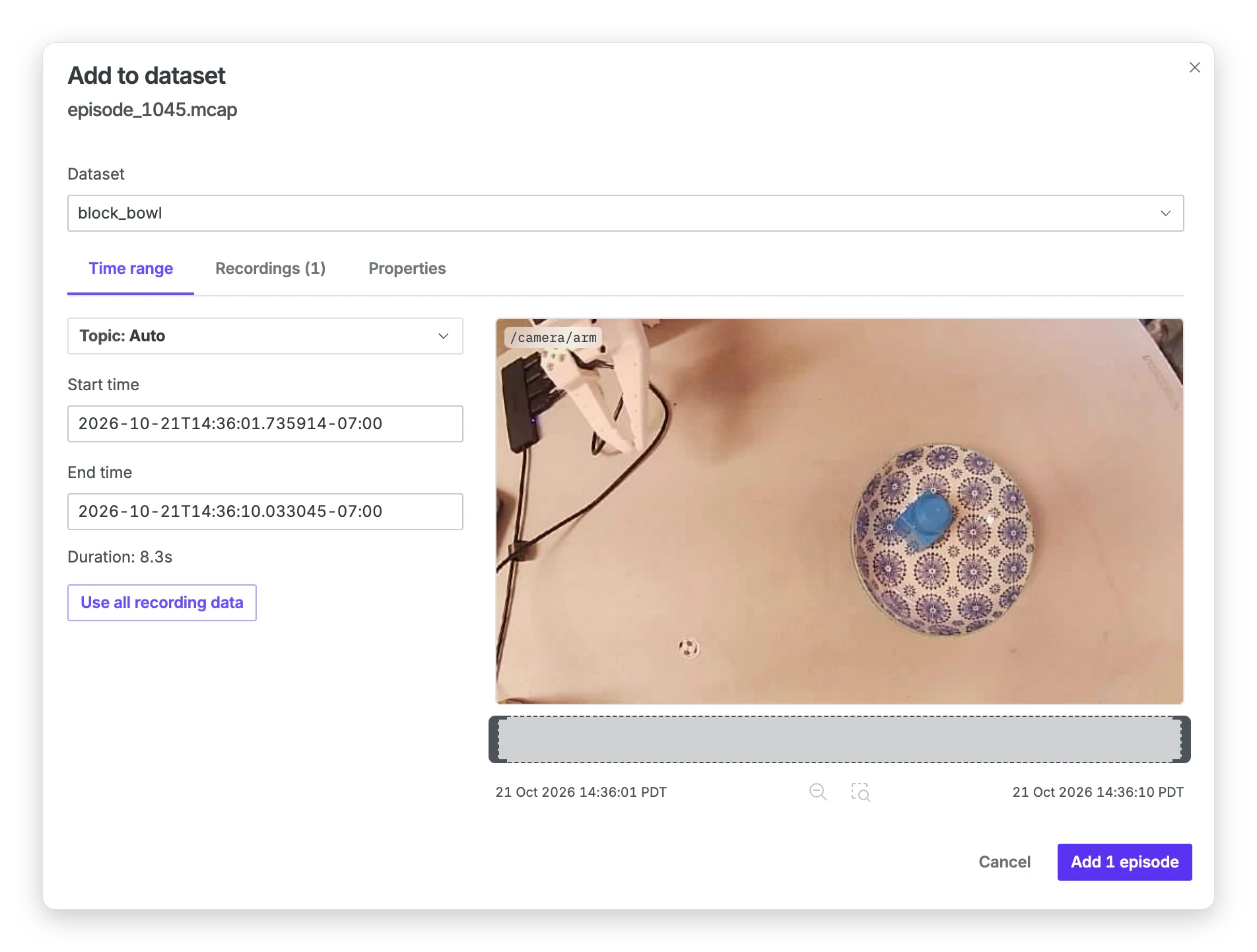
- Each result becomes one episode. Review and trim its time range before creating it. Use Previous and Next to move between episodes, and Skip episode to leave one out.
- Click Add N episodes to create the episodes and add them to the dataset's draft.
Foxglove reuses an existing episode if its latest version has the same time range, recordings, and properties. A dataset holds each episode once and also skips episodes with the same time range and recordings as an existing member.
Create episodes from recordings, sessions, and events
Select items on the Recordings, Sessions, or Events page and click Add to dataset. You can also do this from an item's detail page.
Each item becomes one episode:
- Recording: the whole recording.
- Session: all of its imported recordings.
- Event: its time range, using overlapping imported recordings from its device.
Create an episode during playback
To create an episode during visualization, mark a time range. Click Mark range on the playback bar, or press Cmd+E on macOS or Ctrl+E on Linux and Windows. Set Save as to Episode, then type the start and end times, snap them to the playhead, or drag the range on the timeline. Click Create episode to save it.
The episode uses the recording you are viewing. When you are viewing a session, device, or event, it uses the recordings that overlap the range you marked. A confirmation appears with a View episode link to the new episode's page.
To turn everything you are viewing into an episode, open the data source menu in the app bar and choose Add to dataset. The episode covers the current playback range.
Create episodes with Automations
On plans with Automations, an automation can create episodes and add them to a dataset's draft when an Event is created or Recording is imported trigger fires. To have it label them too, see Label episodes with Automations.
Find episodes
The Episodes page lists every episode in your Project, and a dataset's page lists the episodes in that dataset. Both lists work the same way.
Click Display to switch between Gallery, which shows a preview of each episode, and Details, which shows a table. In the gallery, hover over an episode to play its preview, and click it to open its details beside the list. An episode's own page shows its properties, recordings, version history, and the datasets it belongs to. Its Version history tab lists every episode version along with who created it and what changed.
Filter by properties
To narrow the list, click Filter and choose Properties. Then enter one or more terms, each made of a property key and a value:
outcome:success task:"fold towel"
Every term must match, and a value that contains spaces goes in double quotes. The syntax is the same one you use to search event properties. The other filters narrow the list by time range, by recording, and by whether an episode's recordings are all still available.
In Search, episode properties are fields that start with @episode.properties, so you can combine them with conditions on topics and message contents:
@episode.properties.task == fold_towel and @episode.properties.outcome == success
Watch an episode
Click Visualize on an episode to open it in visualization with your layout. Playback covers the episode's time range.
Find episodes while viewing a recording
The Episodes tab in the right sidebar of visualization lists the episodes that cover the recordings you have open. Click an episode to seek to its start. Hover over it and click View to see its details, where you can edit its time range or add it to a dataset.
Trim and edit an episode
Open Edit episode from an episode's menu, from its page, or from a dataset's draft. The editor has three tabs:
- Time range sets where the episode starts and ends. Type the times, or drag the handles on the preview. Choose a Topic to change what the preview shows, and click Use all recording data to extend the range to everything the recordings hold.
- Recordings lists the episode's recordings. Clear a recording's checkbox to leave it out of the episode.
- Properties sets the episode's labels.
Choose how to save from the menu next to the save button. The editor remembers your choice for next time.
| Action | From the Episodes page | From a dataset's draft |
|---|---|---|
| Save new version | Updates the episode. Datasets that contain it keep using their existing episode versions. | Updates the episode and uses the new version in this draft. Other datasets keep using their existing episode versions. |
| Save as new episode | Creates a separate episode. The original and its dataset memberships stay unchanged. | Creates a separate episode and uses it in this draft in place of the original. |
Save a new version when you are correcting the episode, such as trimming idle time from its start. Save as a new episode when the result is a different piece of data, such as the second half of a long run.
In a dataset's draft, Save new version is available when the draft uses the episode's latest version. If the draft uses an older version, update the episode to its latest version first.
Edit several episodes at once
Select episodes and click Edit in the toolbar. Move between them with Previous and Next or the left and right arrow keys. Saving affects only the current episode and advances to the next. You can return to a saved episode to edit it again; episodes you skip stay unchanged.
Delete an episode
To delete an episode, choose Delete episode from its menu on the Episodes page. You can delete an episode only when no dataset holds it in any version. To take it out of a dataset instead, remove it from the draft.
Deleting an episode leaves its recordings untouched, and deleting a dataset leaves its episodes in place.
In code
The Foxglove CLI and the Python client cover the same tasks through the Episodes API.
Create episodes from a script
Use the Python client to create episodes from known time ranges. This example creates one from a recording and one from an event.
import os
from datetime import datetime, timezone

from foxglove.client import Client

client = Client(token=os.environ["FOXGLOVE_API_TOKEN"])

episodes = client.create_episodes(
    project_id="prj_abcd1234",
    episodes=[
        {
            "recordings": ["rec_123"],
            "start_time": datetime(2026, 10, 1, 9, 0, 0, tzinfo=timezone.utc),
            "end_time": datetime(2026, 10, 1, 9, 0, 30, tzinfo=timezone.utc),
        },
        {"event_id": "evt_456"},
    ],
)
Leave out the start and end times to cover a recording's full range. The client is the foxglove-client package, version 0.24 or later.
The API reuses matching episodes just as the app does. Each create_episodes result includes an id and a created flag (False for an existing episode). The CLI prints Episode already exists with the ID. A request without properties matches only an episode without properties.