Manage datasets
Collect episodes in a dataset's draft and check it for missing labels, gaps, and outliers. Then commit a dataset version to record the episodes and episode versions used for training.
Create a dataset
You can create a dataset while you add episodes, or ahead of time. On the Datasets page, click Create dataset and enter a name and an optional description. Names must be unique within a Project, ignoring case. To change the name or description later, choose Edit details from the dataset's actions menu. When you are viewing a committed dataset version, the same dialog has a separate Description field for that version.
Add and remove episodes
To add episodes that already exist, select them on the Episodes page or on another dataset's page and click Add to dataset. Choose which version of each episode to add in the Version field.
Removing an episode from a dataset doesn't delete it. In a dataset's draft, choose Remove from dataset from an episode's menu, or select several episodes and click Remove from dataset in the toolbar. The episode stays in your Project and in any other dataset that contains it.
Browse episodes
A dataset's page shows one dataset version at a time, and the breadcrumb names the dataset version you are viewing. Pending changes appear with a Draft tag and the next dataset version number, starting at Version 1. With no pending changes, it shows the latest committed dataset version. Open the breadcrumb menu to switch dataset versions and see how many episodes each one added, removed, or updated. Earlier dataset versions are read-only, so switch to the latest one to make changes.
Below the dataset's name are its episode count, creator, and creation time. A committed dataset version also shows who committed it and when. The Added in dataset version column shows which dataset version most recently added each episode.
Click Display above the list to choose how episodes are shown. Display as switches between two views:
- Gallery shows a preview of every episode, which makes visual outliers easy to spot. Preview topic sets the topic the previews show, and Preview time sets whether they show the start, middle, or end of each episode. Choosing End is a quick way to see how each attempt finished.
- Details shows a table, and Columns sets which columns appear and in what order. The Properties column lists each episode's property values, and Episode version shows which version of the episode the dataset uses.
Sort by orders either view by Added at, Start time, End time, or Created at. The list loads more episodes as you scroll.
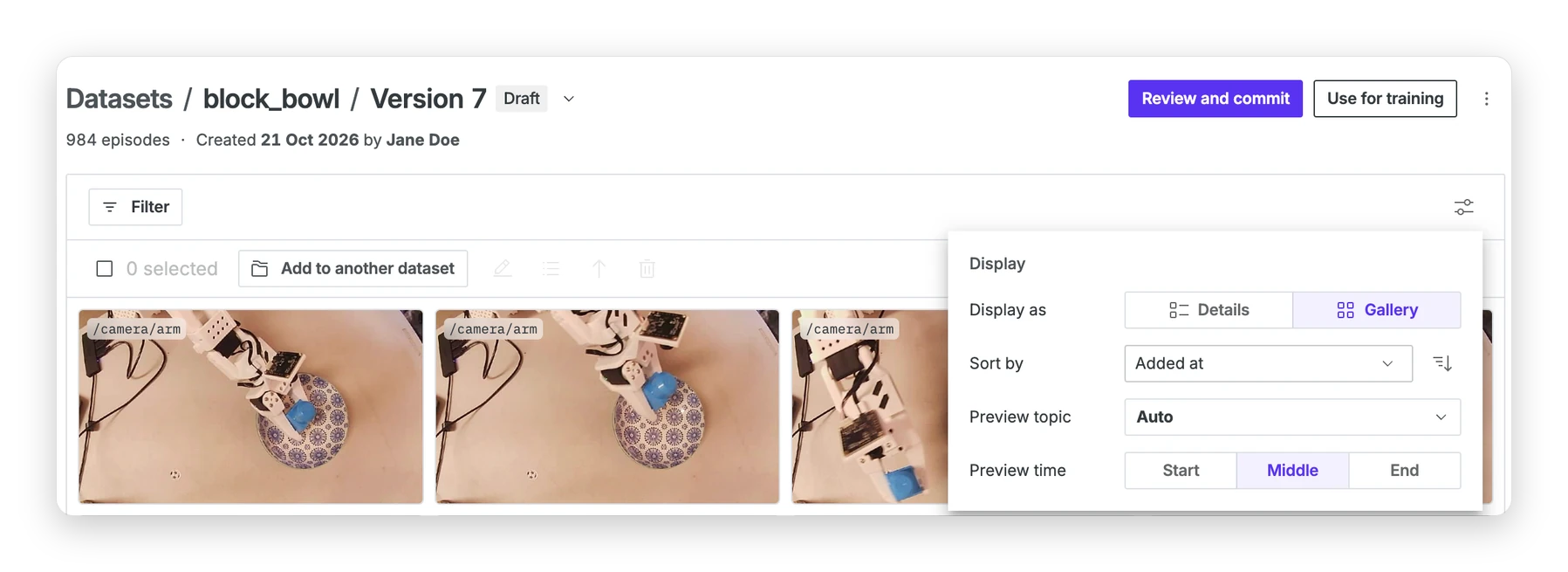
To narrow the list, click Filter. You can filter by properties, by time range, by recording, and by whether an episode's recordings are all still available.
Fix problems in the draft
Select episodes and use the toolbar to fix problems. Hover over an icon to see its name:
- Edit opens the episode editor on the selected episodes, so you can trim them one after another.
- Edit properties sets or removes a property on every selected episode at once.
- Remove from dataset takes the selected episodes out of the draft.
Edits create new episode versions and use them in the draft, so the versions you have already committed stay as they were. Commit the draft when you are done.
Clean up missing recordings
If a recording in the dataset has been deleted, the page warns that one or more recordings are no longer available. A version in that state can't be streamed for training or downloaded. Click Show affected episodes to filter the list to the episodes that use those recordings.
To repair the draft, click Remove missing recordings. What happens to an episode depends on which version of it the draft uses:
- When the draft uses the episode's latest version, the episode gets a new version without the missing recordings, and the draft uses it. If none of its recordings are left, the episode is removed from the draft.
- When the draft uses an older version, the episode stays unchanged. Update it to its latest version, then click Remove missing recordings again.
Commit the draft to save the repaired set as a version. To train on a version again later, keep the recordings it uses.
Update episode versions
Episode edits create new versions. Datasets keep using their existing episode versions until you update them.
Select episodes in the draft and click Update to latest version. The button's tooltip shows how many of the selected episodes have a newer version. To choose a specific version of one episode, open its menu and choose Change episode version. Commit the draft once the episodes are at the versions you want.
Edits you make from the dataset's draft skip this step, because the draft uses the new episode versions as soon as you save.
Commit a dataset version
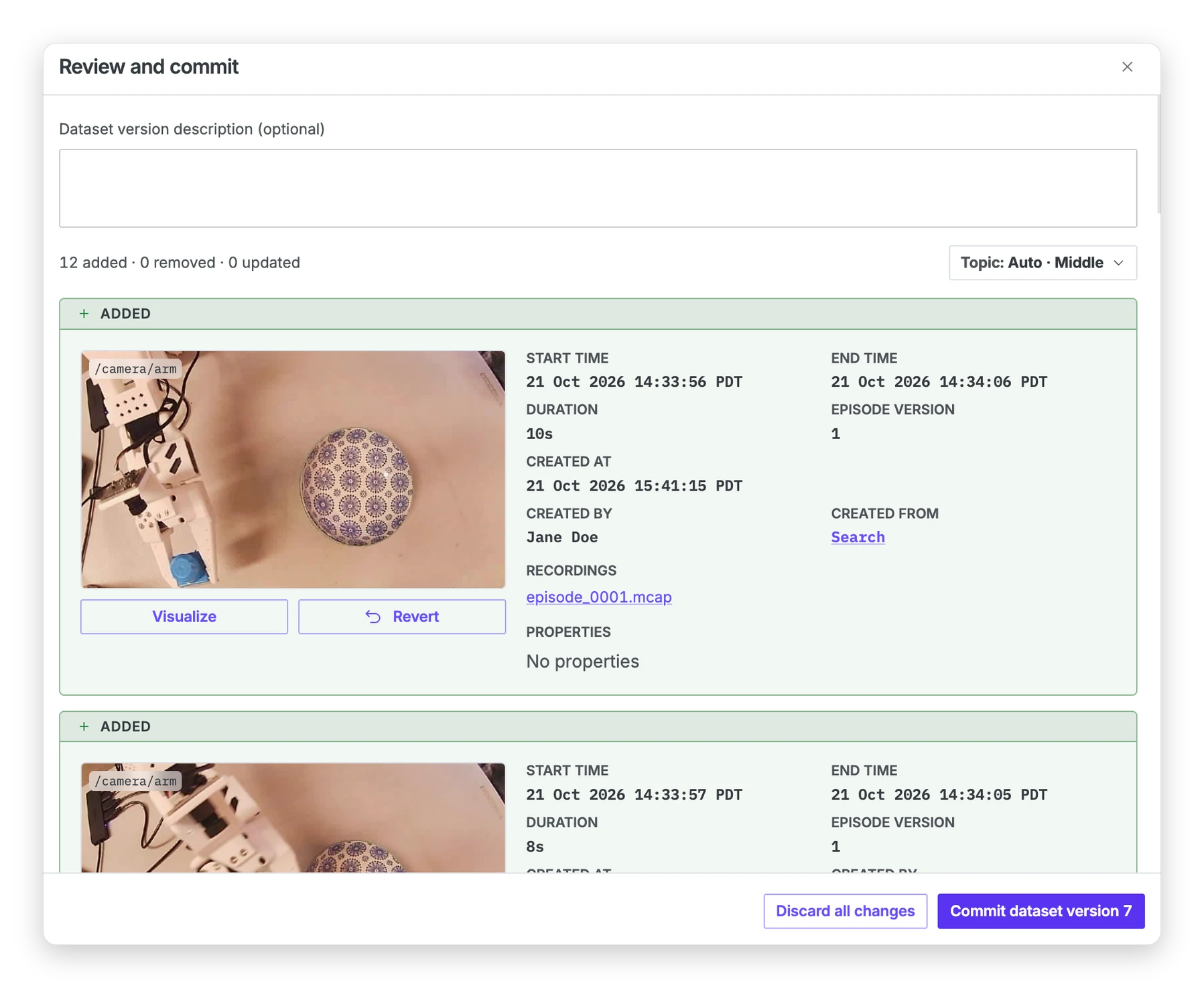
When the draft has changes, a Review and commit button appears on the dataset's page. Click it to see each pending change, marked Added, Removed, or Version updated, and click Revert to undo one.
Add an optional description of what this version is for, then click Commit dataset version N. The new version records the episodes in the draft and the version of each one, along with who committed it and when. The draft then starts clean on top of it.
To drop everything in the draft instead and return to the last committed dataset version, click Discard all changes in the same dialog. Episode versions you saved along the way are kept.
To start training or evaluation whenever a version is committed, subscribe to the dataset.version.committed webhook, whose payload carries the dataset ID and the version number.
Compare dataset versions
To see how the data changed between two versions, click Compare versions on a dataset's page. Choose a Base version and a version to Compare to. The comparison lists the episodes that were added or removed between the two. For each episode whose version was updated, it shows what changed in its time range, recordings, and properties.
To compare model performance, score both models on a separate evaluation dataset.
Restore a dataset version
Select an earlier version from the breadcrumb menu and click Restore this version. This replaces the draft, discarding pending changes. Commit the draft to save the restored contents as a new version. Existing committed versions stay in the history.
Clone a dataset
Clone a committed version to try a different selection of episodes in a separate dataset. On a dataset's page, open the actions menu and choose Clone, then select a Dataset version and enter a name.
The clone holds the same episodes at the same episode versions, and later changes to either dataset don't affect the other. It starts at Version 1 unless you select Keep version history. That option copies every version up to the one you cloned, along with their descriptions and commit details.
In code
The Python client and the Foxglove CLI cover the steps on this page through the Datasets API. For example, create_dataset takes the IDs of the episodes to start with, and commit_dataset commits the draft. get_dataset_version reports a version's size and how it differs from the version before it, and compare_dataset_versions compares any two.
Restoring and committing are two calls. Pass force=True to restore_dataset_version when the draft has pending changes that you are willing to discard. Without it, the call fails and leaves the draft as it is.
Check a dataset version from Python
Use scripts to check durations, labels, and data coverage across versions. These examples need foxglove-client 0.24 or later. The last one also needs foxglove-sdk 0.31 or later with its torch extra.
Check durations and labels with pandas
List a version's episodes with their properties and recordings, then load them into a table. From there, durations and label counts take one line each.
import os

import pandas as pd
from foxglove.client import Client

client = Client(token=os.environ["FOXGLOVE_API_TOKEN"])

members = client.get_dataset_version_episodes(
    dataset_id="dset_123",
    version_number=3,
    include_properties=True,
    include_recordings=True,
)
episodes = [member["episode"] for member in members.auto_paging_iter()]

table = pd.DataFrame(
    {
        "id": episode["id"],
        "duration_s": (episode["end_time"] - episode["start_time"]).total_seconds(),
        **episode.get("properties", {}),
    }
    for episode in episodes
)
print(table["duration_s"].describe())
print(table["outcome"].value_counts(dropna=False))
Check topics and coverage
This loop checks each episode's topics and reports missing ones. It also checks data coverage for the episode's device. Multiple coverage ranges indicate a gap in the recorded data.
required = {"/camera/front", "/joint_states"}

for episode in episodes:
    topics = client.get_topics(
        episode_id=episode["id"], episode_version=episode["version"]
    )
    missing = required - {topic["topic"] for topic in topics}
    if missing:
        print(episode["id"], "is missing", sorted(missing))

    device_ids = {recording["device_id"] for recording in episode["recordings"]}
    for device_id in device_ids - {None}:
        ranges = client.get_coverage(
            device_id=device_id, start=episode["start_time"], end=episode["end_time"]
        )
        if len(ranges) != 1:
            print(episode["id"], "has", len(ranges), "coverage ranges")
Coverage finds long gaps, such as a pause between two recordings. To find short gaps within a topic, check the messages themselves, as the next example does.
Check message rates and gaps
The dataset reader calls your function for each episode and streams the selected topics in log-time order. This example measures the rate and longest gap on one topic, then prints episodes outside the limits.
from foxglove.datasets import EpisodeReader
from foxglove.datasets.torch import read_dataset


def check_episode(episode: EpisodeReader):
    count, longest_gap_ns, previous = 0, 0, None
    for _schema, _channel, message, _decoded in episode.iter_messages():
        if previous is not None:
            longest_gap_ns = max(longest_gap_ns, message.log_time - previous)
        previous = message.log_time
        count += 1
    seconds = (episode.end_time - episode.start_time).total_seconds()
    yield {
        "episode": episode.id,
        "rate_hz": count / seconds if seconds else 0.0,
        "longest_gap_s": longest_gap_ns / 1e9,
    }


dataset = read_dataset(
    "dset_123", version=3, topics=["/joint_states"], read_episode=check_episode
)
for result in dataset:
    if result["rate_hz"] < 45 or result["longest_gap_s"] > 0.1:
        print(result)
To check how many episodes land in each split before you train, see Split a dataset version for training and evaluation.