Datasets Beta
Datasets are how you assemble training and evaluation sets from your robotics data. Curate moments that matter, such as successful grasps or night-drive failures, into a versioned collection you can load into a training pipeline.
A dataset is a named, versioned collection of episodes. An episode is a time range over one or more recordings. The episodes in a committed dataset version are immutable, maintaining a record of the exact data used for training. You can edit the description of a draft or committed version through the API.
Datasets belong to a Project and live on the Datasets page. You can also create and manage datasets, their versions, and episodes via the API.
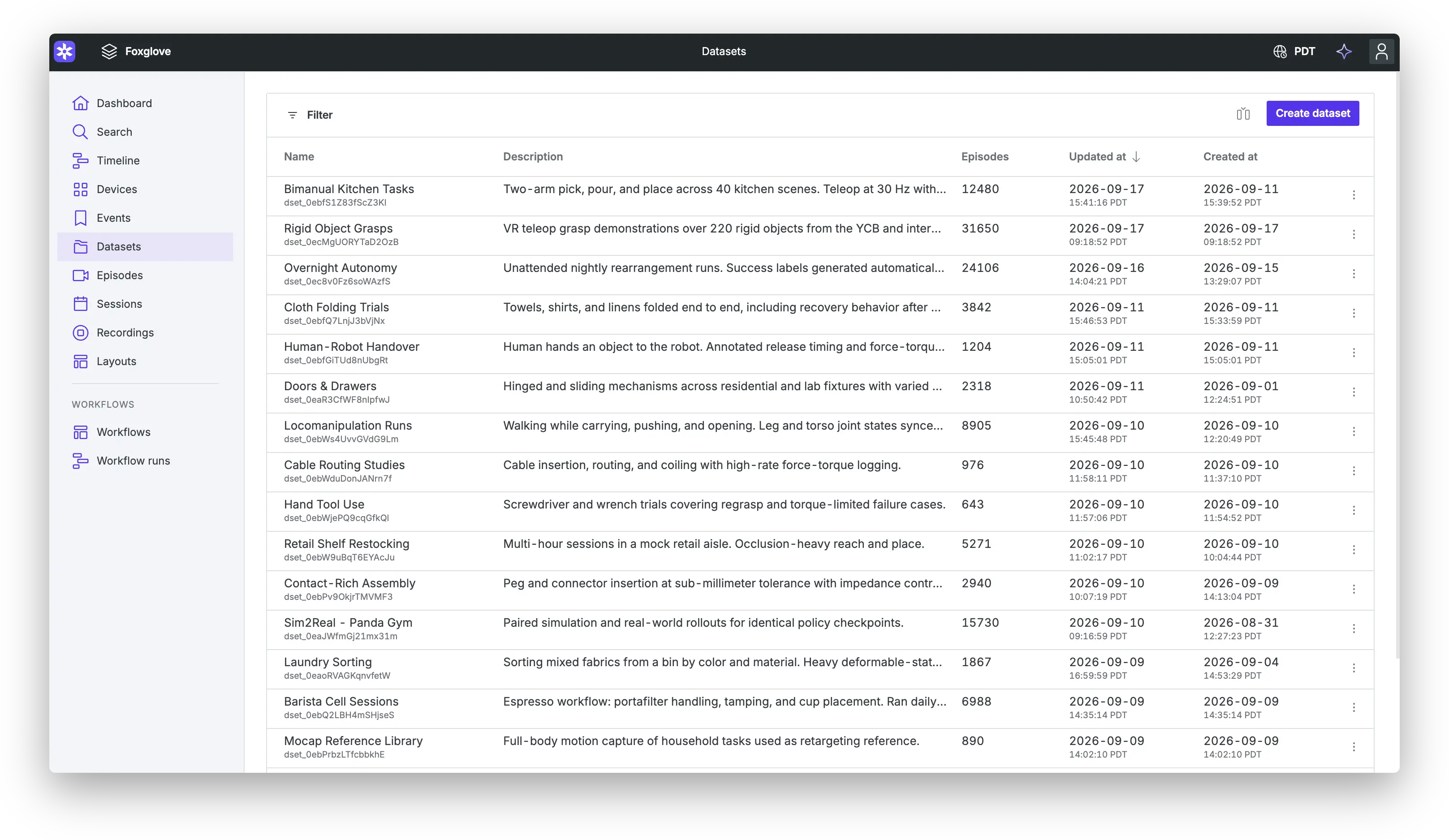
On the Datasets page, a search box on the left of the filter bar matches part of a dataset name, ignoring case. Press Cmd+F (Ctrl+F on Linux and Windows) to focus the search box. In a web browser, press it again while the box has focus to use the browser's find in page.
Episodes
An episode represents a complete set of actions for a task, commonly used for ML training.
Foxglove episodes reference a time span on recordings, with optional custom properties to track labels and custom info without duplicating the underlying data.
Episodes exist independently of any dataset. The Episodes page lists every episode in the Project. While visualizing recordings, the Episodes tab in the right sidebar lists the episodes on those recordings.
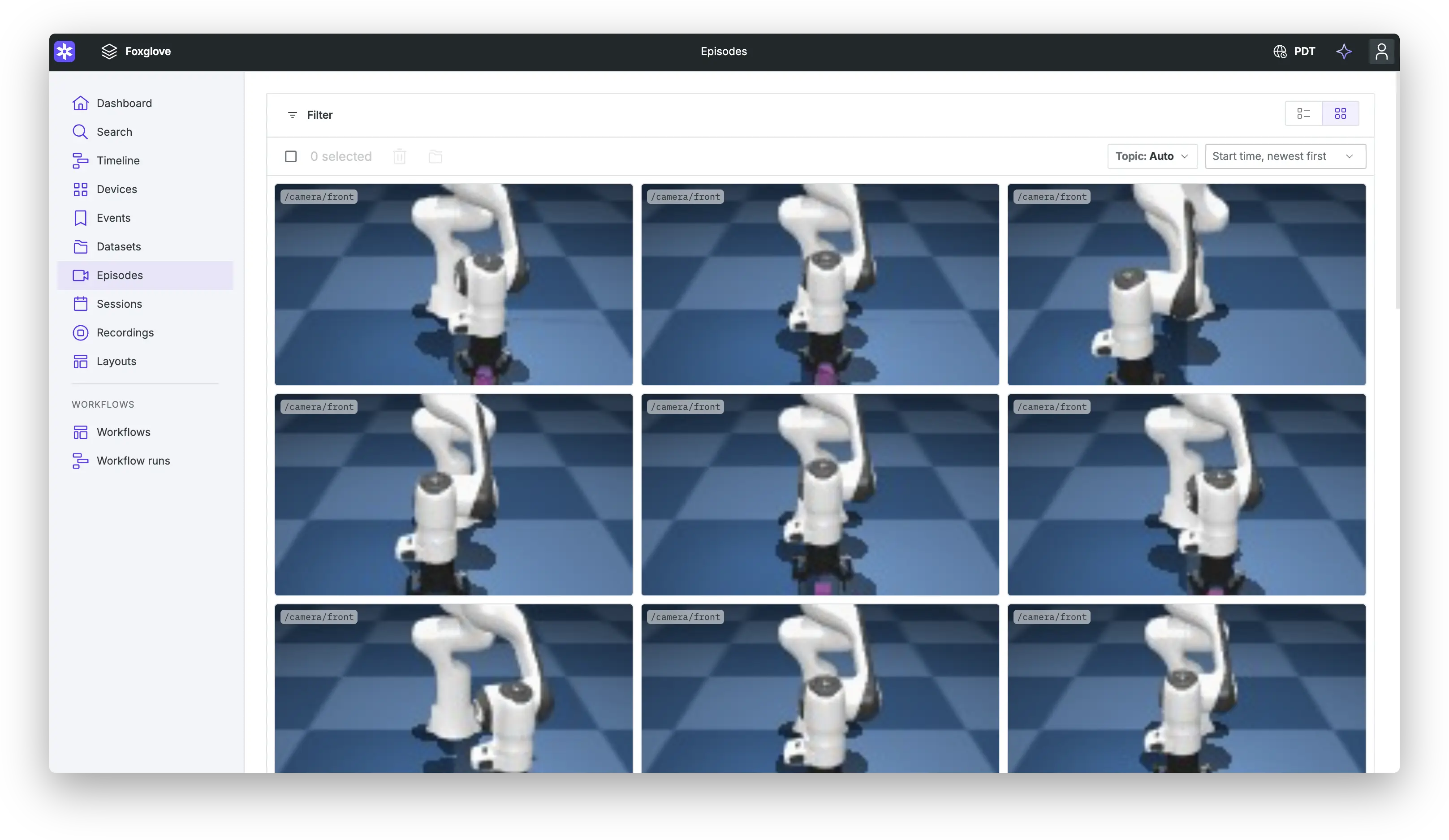
The Episodes page shows each episode's version and properties. The Filter button adds filters, including properties.
Click an episode to open its page. The Details, Properties, Version history, Recordings, and Dataset history tabs show the selected episode version. The version menu in the page's breadcrumb switches between versions.
Search matches episodes by ID or property, so one query can pull a training set out of thousands of episodes. To find every towel-folding episode a labeler marked successful:
@episode.properties.task == fold_towel and @episode.properties.outcome == success
Select the matching episodes and use Add to dataset. See Search for the full query syntax.
To download a single episode, open it from the Episodes page and click Download. The download is one MCAP or ROS 1 bag file that merges the episode's recordings over its time range. In the dialog you can narrow the range or choose which topics to include. Recordings whose data has been deleted are left out, and Download is disabled when none of the episode's recordings have data left.
An episode stores a reference to its recordings and time range, not a copy of the data. If that data is deleted, the episode remains and keeps its reference to it, though the reference no longer resolves to anything you can visualize or download.
Episodes tab
The Episodes tab in the visualization right sidebar lists the episodes on the data that you view, sorted by start time. An episode is listed when its recordings are exactly the recordings in the view and its time span overlaps the loaded time range, so an episode that also covers other recordings is not listed. The tab is available when you view recordings, a session, an episode, a device, or an event stored in Foxglove. A view of more than 50 recordings lists no episodes. In compare mode, the tab lists the episodes of each compared source, labeled with that source's letter.
Click an episode to seek to its start, or to the start of the loaded time range when the episode begins before it. Filter the list by episode ID.
Hover over an episode and click View, or press Enter on a focused episode, to seek to it and open its details in place of the sidebar. The details show the episode's ID, time range, and duration, with a link to its page. Add to dataset adds the episode, at that version, to a dataset. Back or Close returns to the Episodes tab.
Creating episodes in visualization
Where you can create both events and episodes from the data you view, the playback bar's Create event button is Mark range. Click it or press Cmd+E to start a range at the playhead, then set Save as to Episode. Type the start and end times, snap either one to the playhead, or drag the range's bar on the events timeline. Create episode saves an episode over that range of the viewed recording, or of the complete recordings of the viewed session, device, or event that overlap the range. Times are saved to the millisecond, and the end must be after the start. Once it's saved, View episode in the confirmation opens the episode's page. An existing episode with the same range and recordings is reused instead of duplicated.
Mark range is not available in compare or merge mode, while viewing an episode, or for live data. An episode created from part of a session or device can hold fewer recordings than the view, so it appears on the Episodes page but not in the Episodes tab.
Creating a dataset
To make a new dataset, click Create dataset on the Datasets page and give it a name, plus an optional description. Names are case-insensitive and must be unique within a Project. Typing a new name in the Add to dataset dialog also creates a dataset.
Adding episodes
Add to dataset appears anywhere you can select data:
- The Search, Recordings, Sessions, Events, and Episodes pages, and their detail pages
- The data source menu, the event details panel, and the episode details panel in visualization
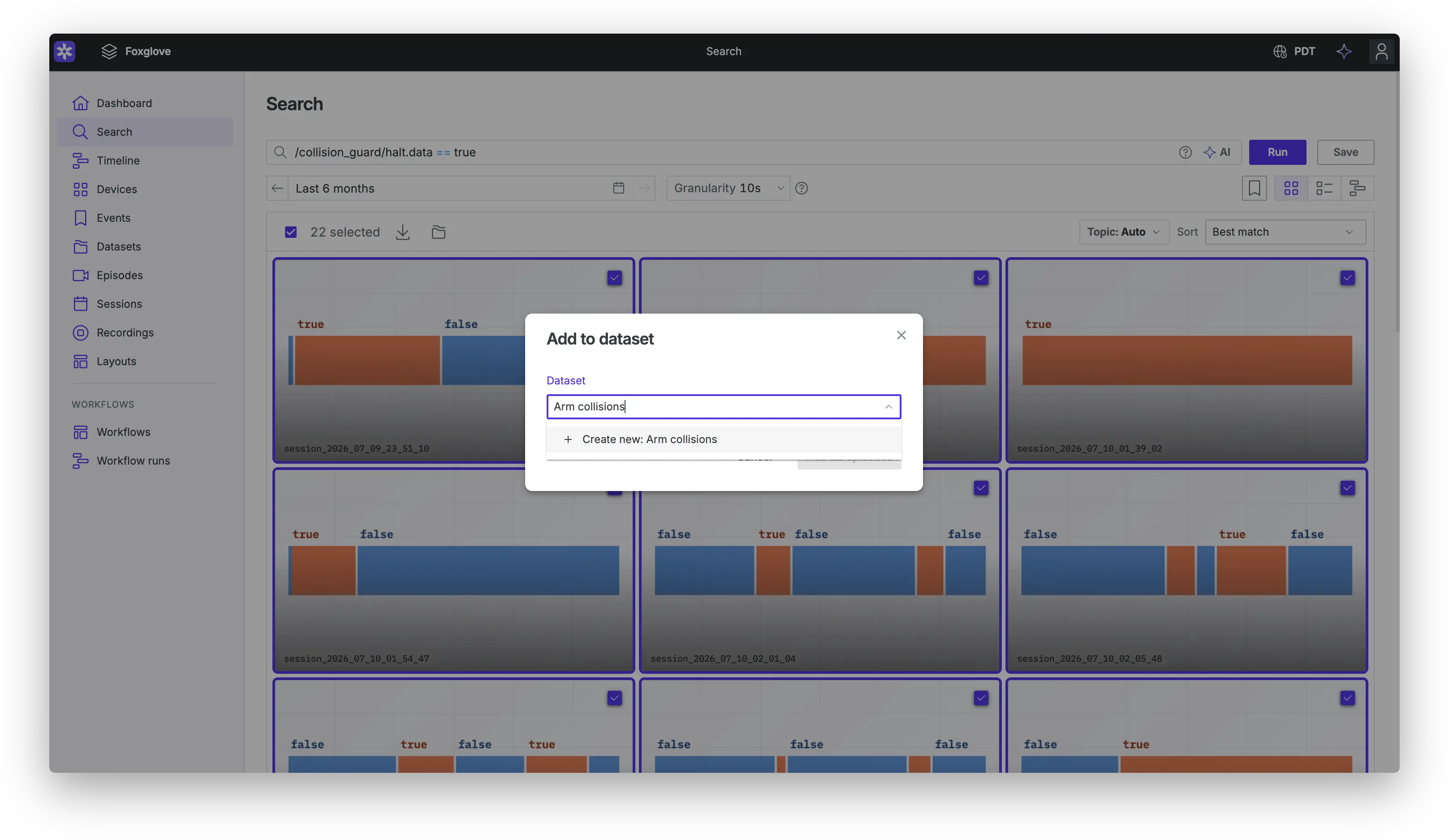
Each selected item becomes an episode. Items with no recordings or a zero-length time range are skipped.
Adding from visualization covers the current playback range, not the whole recording. Set the range to the span you want the episode to cover before you add it.
When you add a single existing episode, choose which of its versions the dataset uses. Episodes added in bulk use their latest version. An episode already in the dataset keeps its existing version; use Change episode version to switch it.
Editing episodes
Edit episode on the Episodes page opens an editor with Time range, Recordings, and Properties tabs. Change the start and end time, remove recordings, or set property values. Save new version saves a new version of the same episode. Datasets keep using their existing episode versions. To create a separate episode without changing the original or its dataset memberships, open the menu next to the save button and select Save as new episode. The editor remembers your choice the next time you edit an episode. Edits start from the latest episode version.
Edit episode on the dataset page opens the same editor for the draft. Save new version saves a new version of the episode and switches the draft to it. Save as new episode creates an episode with the new range and replaces the original in the draft, so Review changes shows one addition and one removal. Either way, other datasets containing the episode remain unchanged. When the draft uses an older version of the episode, only Save as new episode is available.
Edit in an episode's details in the visualization Episodes tab changes its start and end time in place. Type the times, snap either one to the playhead, or drag the episode's bar on the timeline by an edge or as a whole. Save new version saves a new version of the episode, and Cancel discards the change. Editing from the Episodes tab is not available in compare mode or for an older episode version.
To change which episode version a dataset draft uses, select Change episode version from the episode’s actions menu.
Episode versions
Each change to an episode's time range, recordings, or properties creates a new episode version. A save that changes nothing keeps the current version. Earlier versions keep their own time range, recordings, and property values, so a committed dataset version keeps the exact episodes and labels it was committed with.
The Version history tab on an episode's page lists its versions, newest first, with when each was created, who created it, and which fields changed. Select a version to view it. Wherever an episode appears at an older version, such as in a dataset, Newer version available marks that a later version exists.
You can also list versions, read a specific version, and update episodes with the Episodes API. A single request can update up to 2,000 episodes, and the updates apply together: if any fails, none are applied. Pass appliesToVersion to update an episode only if it is still at that version.
Episode properties
Admins can define episode properties for the organization in Settings → Episodes. Each property definition includes:
- Key – Unique identifier (for example,
outcome) - Value type – Enforced type for the property's value: Single-line text, Multi-line text, Number, True/False, Single-select, or Multi-select
For example, an admin could create an episode property called outcome that accepts success or failure. Any organization member can then set an outcome on episodes to label which attempts succeeded.
Set and edit values
Once an admin has created an episode property, any organization member can set and edit its values from the Properties tab on an episode's page or the Properties tab of Edit episode. Only the latest episode version can be edited.
Each change creates a new episode version, and earlier versions keep their values. To relabel the episodes in a dataset, edit their properties, then select Change episode version to switch the draft to the new versions, and commit.
These values can be seen on the Episodes page, on an episode's page, in dataset downloads, and in API responses that request include=properties.
Filter
On the Episodes page, the Filter button opens a menu with Properties. Enter one or more key:value terms, for example outcome:success task:"fold towel". Every term must match, and values that contain spaces go inside double quotes. The API's propertiesQuery parameter takes the same syntax.
In Search, use @episode.properties.<key> to match episodes by property.
Versions
Every dataset has exactly one draft version, created with the dataset and again after every commit. Adding episodes, removing episodes, and changing episode versions stage changes in the draft.
Open Review changes to see what the draft has staged. Commit saves it as a numbered version and records who committed it and when. Discard all changes resets the draft to the last committed version. A draft with no changes can't be committed.
A dataset version records the episodes it contains and which version of each episode it uses.
To view an earlier dataset version, select it from the version dropdown. Select Restore this version to make the draft use that version’s episodes and episode versions. This discards any pending draft changes. Commit the draft to save the restored contents as a dataset version.
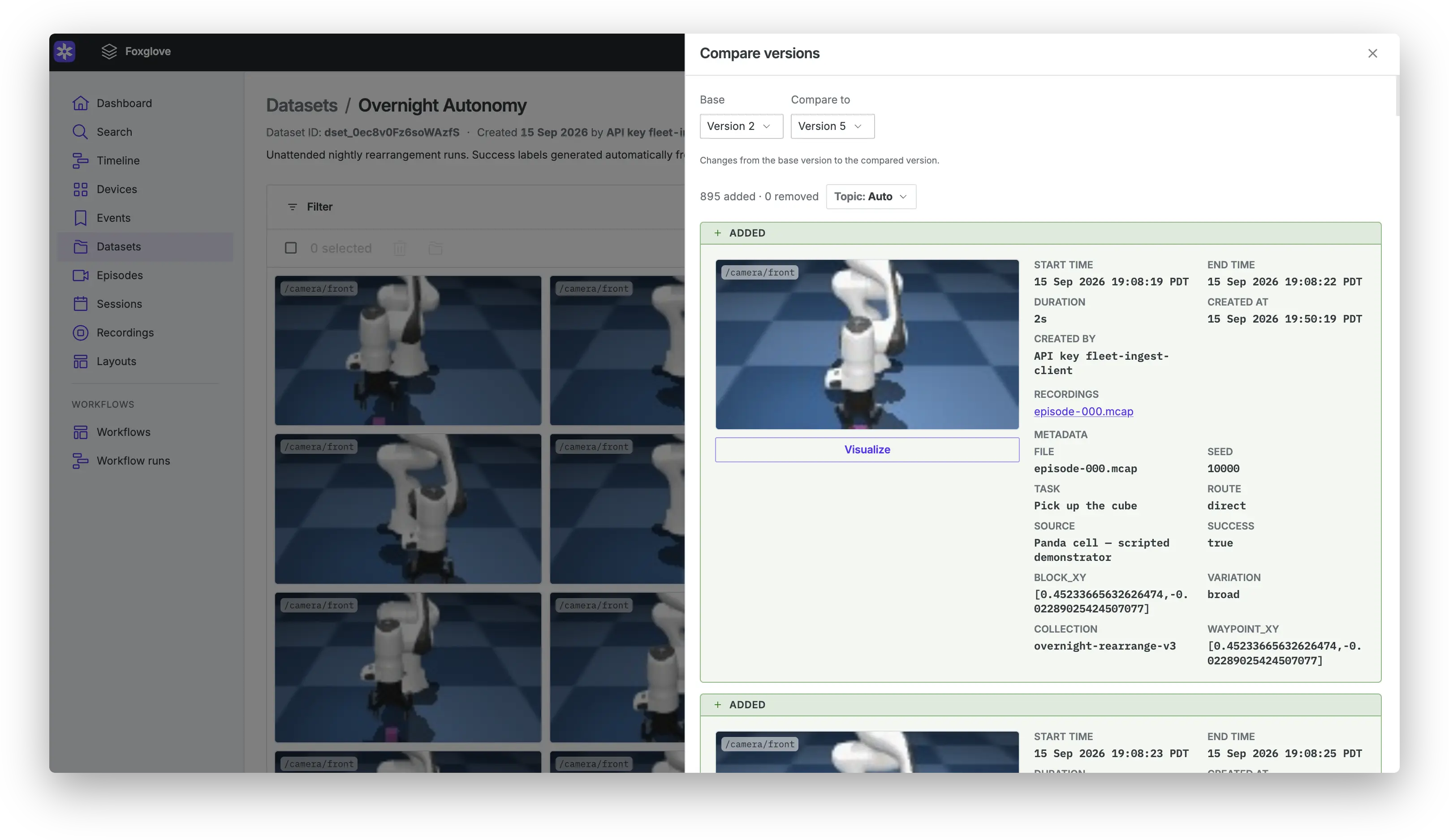
Compare versions shows episodes added, removed, or updated between two dataset versions. An episode appears as Version updated when both contain the same episode ID but use different episode versions. For example, switching an episode from version 2 to version 3 appears as a version update.
Removing and deleting
Removing an episode from a dataset doesn't delete the episode. Deleting a dataset doesn't delete the episodes it held.
An episode can be deleted only when no existing dataset holds it in any version.
Exporting a dataset for training
Download in the dataset actions menu packages a committed version as a zip archive.
Drafts can't be downloaded. Commit the draft first. A version with recordings that are no longer available can't be downloaded either. Select another version, or remove the affected episodes and commit a new version.
In the dialog, choose the version to download and, optionally, the topics to include. With no topics selected, the download includes every topic.
The archive holds one MCAP file per episode plus a manifest:
night-drive-failures-v3/
  episode_0000_ep_7Ht2kQmN4pWx.mcap
  episode_0001_ep_9Kp4mRtY2wQz.mcap
  manifest.json
manifest.json records the dataset, the version and its commit time, the topic selection, and one entry per episode with its ID, version, time range, properties, byte size, and a status of downloaded or failed. An episode that fails to stream, including one with no recording data on a Primary Site, is recorded with the reason, and the rest of the download continues.