Connect your own agent (MCP)
The Foxglove desktop app can run a local Model Context Protocol (MCP) server, so AI tools you already use — Claude Code, Cursor, Claude Desktop, and other MCP clients — can see and control Foxglove. Your agent can inspect the loaded data, build layouts, write user scripts, control playback, and search the Foxglove documentation.
This is useful when your investigation spans more than Foxglove — for example, an agent that reads a failing test in your code, finds the matching recording, and opens it in Foxglove with the right panels.
Requirements
- The Foxglove desktop app — the MCP server isn't available in the web app.
- The desktop app must be running for your agent to reach it. Tools act on the live app, so whatever data source is open is what your agent sees.
The server only listens on your own machine (http://127.0.0.1:7333/mcp). It's never exposed to your network or the internet.
Enable the MCP server
- In the desktop app, go to Settings → AI.
- Turn on Local MCP server.
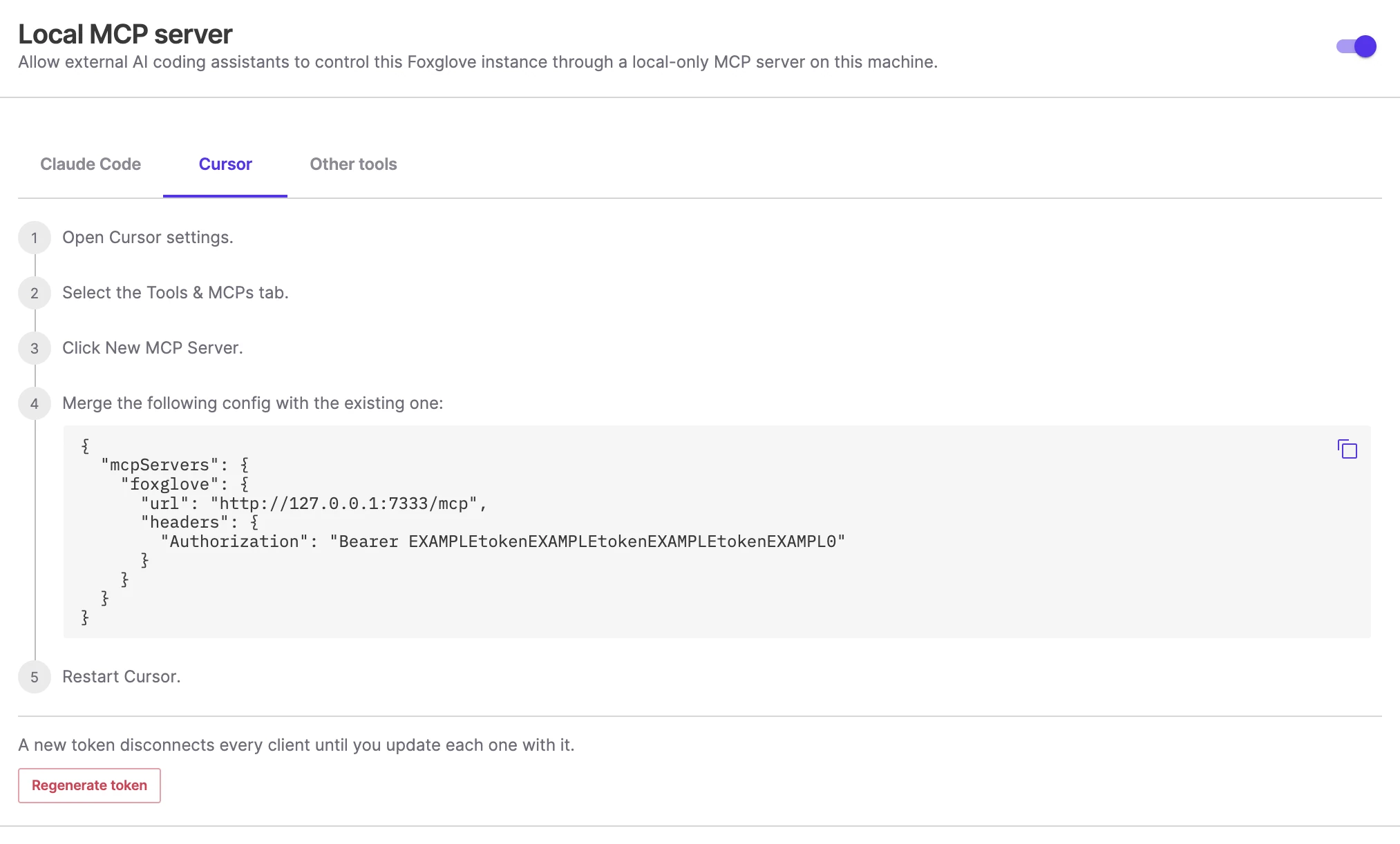
Once enabled, the settings page shows copy-paste setup instructions for each client, with your access token already filled in.
Connect your client
The settings page shows these same snippets with your real token. Replace <token> below with the token from Settings → AI.
- Claude Code (CLI)
- Cursor
- Claude Desktop
- Other tools
Run this command in your terminal:
claude mcp add --transport http foxglove http://127.0.0.1:7333/mcp --header "Authorization: Bearer <token>"
In Cursor, go to Settings → Tools & MCPs → New MCP Server and merge this into your configuration, then restart Cursor:
{
  "mcpServers": {
    "foxglove": {
      "url": "http://127.0.0.1:7333/mcp",
      "headers": {
        "Authorization": "Bearer <token>"
      }
    }
  }
}
Claude Desktop doesn't support HTTP servers directly, so the config routes through the mcp-remote adapter. Go to Settings → Developer → Edit Config, merge this into the file, and restart Claude Desktop:
{
  "mcpServers": {
    "foxglove": {
      "command": "npx",
      "args": [
        "-y",
        "mcp-remote",
        "http://127.0.0.1:7333/mcp",
        "--header",
        "Authorization: Bearer <token>"
      ]
    }
  }
}
On Windows, wrap npx in cmd — Claude Desktop has a known issue running npx directly:
{
  "mcpServers": {
    "foxglove": {
      "command": "cmd",
      "args": [
        "/c",
        "npx",
        "-y",
        "mcp-remote",
        "http://127.0.0.1:7333/mcp",
        "--header",
        "Authorization: Bearer <token>"
      ]
    }
  }
}
Point any MCP client that supports the streamable HTTP transport at http://127.0.0.1:7333/mcp, and send the token in an Authorization: Bearer <token> header on every request.
To verify the connection, ask your agent something like "What data source is open in Foxglove right now?" — it should answer using the session status tool.
Access token
The desktop app generates a random access token the first time the MCP server starts, and every client presents it as a bearer token. Treat it like a password:
- The token grants control of your Foxglove app to anything on your machine that has it, so don't share it or commit it to a repository.
- To invalidate it, click Regenerate token on the AI settings page.
Regenerating the token disconnects every configured MCP client until you update each one with the new token.
Actions run without prompting
Foxglove runs whatever tool your agent calls, as soon as it calls it. The MCP server doesn't pause for your approval, and layout changes don't get a diff to review — the agent's writes apply directly.
What that means in practice:
- Layouts, user scripts, events, and devices are the writable surfaces. An agent can replace the layout you have open, overwrite or delete a user script, create, edit, or delete events, and create or update devices in your organization's fleet.
- Only connect agents you trust with the app, and lean on your agent's own approval settings. Most MCP clients can ask before running a tool, and that prompt is what gates writes here.
- If you want to keep a layout you've been working on, save it before pointing an agent at it.
What your agent can do
External agents get the full Foxglove tool catalog:
| Area | Capabilities |
|---|---|
| Data source | List topics, read schemas and messages, summarize the loaded data source; create, update, and delete events |
| Layouts | Read, create, modify, rename, and validate layouts; configure individual panels; capture the app, layout, or a panel as an image |
| User scripts | List, read, create, update, and delete user scripts |
| Playback | Read playback state, play, pause, seek, and set the playback range |
| Data search | Search your organization's recordings, sessions, and events |
| Navigation | Take the app to a specific page or view |
| Devices | Read devices, and create or update them |
| Sites | List the organization's Primary Sites and Edge Sites — where recording data is stored, indexed, and queued for import |
| Documentation | Search the Foxglove docs and cite sources |
| Skills | List and fetch Foxglove's built-in task playbooks for layouts, panel configuration, FoxQL, user scripts, and MCAP diagnostics |
Most of these run in the app on your machine. Three are answered by Foxglove's cloud, which the server reaches on your agent's behalf: documentation search, device listing, and Site listing. Those are only offered while the desktop app is signed in, and they're offered at the moment your client connects — an agent that connects while the app is signed out simply won't be told about them, rather than getting an error, and signing in afterwards doesn't reach it. Reconnect the client so it re-reads the tool list.
Signing in matters beyond those three. The data-search tools and the device tools other than listing — looking a device up by name or ID, creating one, updating one — run on your machine, so they stay in your agent's list while signed out, but they reach Foxglove for their answers and fail when called. Anything touching devices, Sites, or your organization's recorded data needs a signed-in app.
Troubleshooting
- 401 Unauthorized — your client's token doesn't match the app's. Copy the current token from Settings → AI into your client config, or regenerate it and update every client.
- Connection refused — make sure the desktop app is running and Local MCP server is turned on. If the settings page warns that the listener isn't bound, another process may be using port 7333.
- Tools fail or return nothing useful — most tools operate on the data source currently open in the app. Open a recording or connection first.
- Your agent doesn't see the documentation or device-list tools — cloud-answered tools (documentation search, device listing, and Site listing) are only offered while the desktop app is signed in, and only at connection time. Sign in, then reconnect your MCP client so it re-reads the tool list. The data-search tools and the device tools other than listing behave differently: they stay in your agent's list while signed out, but fail when called.