AI Chat
AI Chat is the built-in assistant in the Foxglove app. It answers questions about the data you have open — topics, schemas, messages — and performs actions on your behalf, like building a layout or writing a user script. Answers are grounded in your actual data, not guesses.
Open AI Chat
Click the Ask Foxglove sparkle button in the top-right corner of the app, or press Cmd+J (macOS) or Ctrl+J (Windows/Linux).
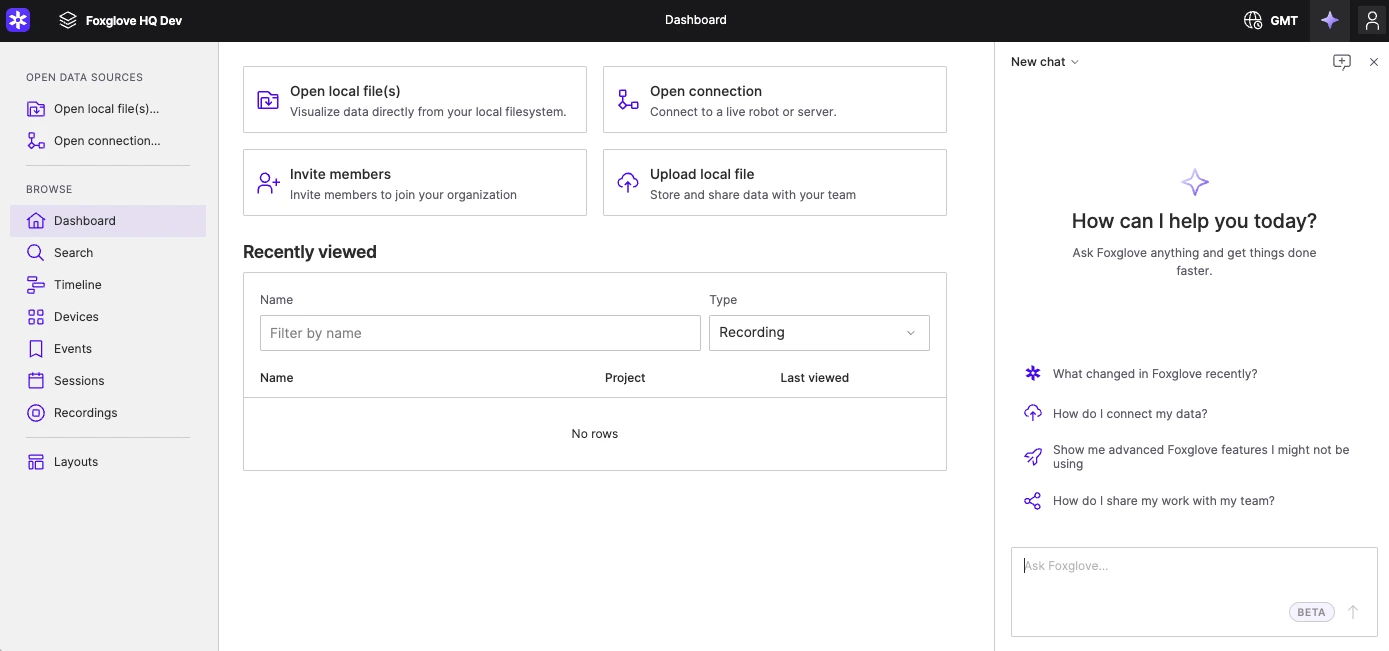
The chat opens as a resizable panel on the right side of the app. Drag its edge to resize it.
Ask a question
Type a question, or click one of the suggested prompts to get started. Some things to try:
- "What's in this MCAP file?"
- "Build a layout to review the camera feeds and joint states."
- "Why is there a gap in
/imu/dataaround the 30 second mark?"
Type @ in the composer to mention a specific topic from your data source — the assistant will focus its answer on that topic.
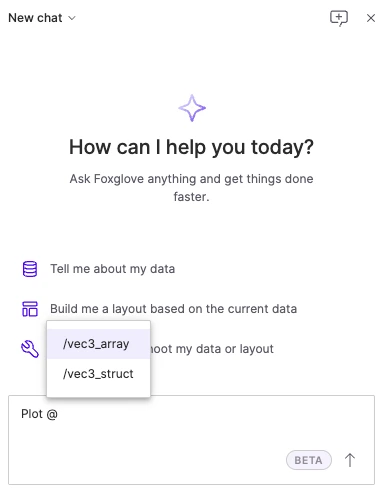
For prompts that combine several capabilities into one ask, see the example workflows on the overview page.
While the assistant is working, you can click Stop to end its turn. If a response fails, click Retry.
See what it did
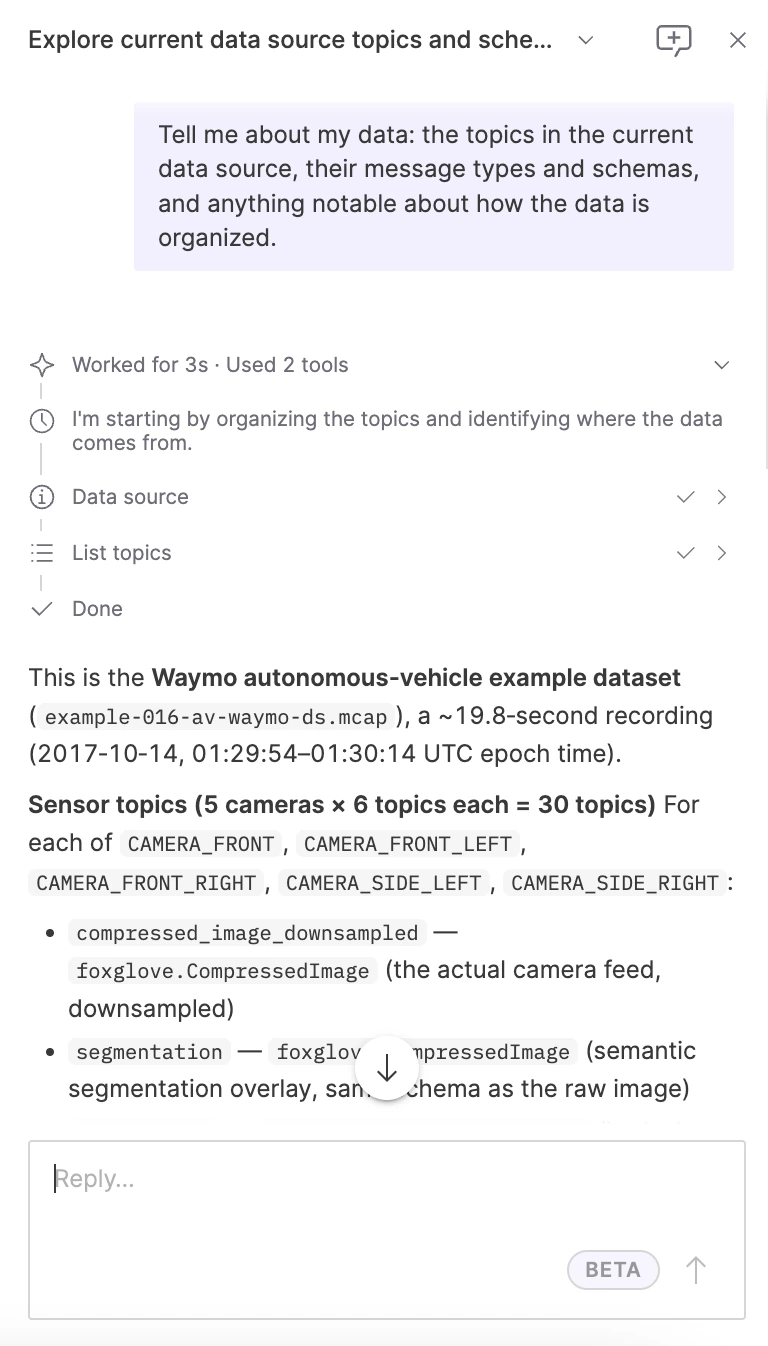
AI Chat usually answers by calling tools — like "List topics" or "Read messages" — to inspect your data. A run of calls collapses behind a Used n tools line — usually prefixed with how long the assistant worked — which you'll see once a turn makes more than one call, or reasons between calls. Expand it to see every call in order along with that reasoning, then expand an individual call to see the exact Parameters it sent and the Result it got back. If you're wondering why the assistant said something, this is the place to look.
A call that fails is marked in the list, and the assistant usually adjusts and tries again — a failure part-way through a turn isn't necessarily a problem with the answer. Expand the failed call to see the error it got.
Approving changes
Read-only tools run automatically. Any action that changes something — saving a layout, editing a panel, writing a user script, updating an event — pauses on an Allow this action? prompt that names what the assistant wants to do. Skip turns the action down. To allow it, choose how long the permission lasts:
- Allow once — run this action now; ask again next time.
- Allow for this chat — stop asking for this tool until you close the conversation.
- Always allow — stop asking for this tool on this device. Review or revoke these choices anytime in Settings → Personal → Agents & MCP, where the Chat card lists every allowed tool.
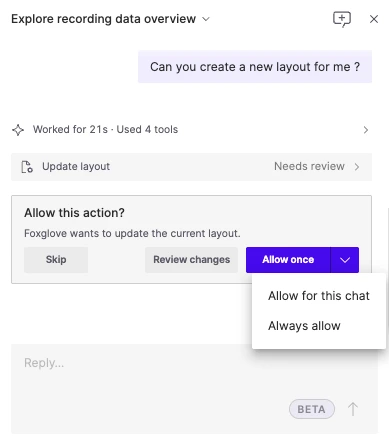
Layout and panel changes add an optional review step. When there's a current layout to compare against, the prompt carries a Review changes button, which replaces the prompt with a summary of the panels it would change — each marked Added, Removed, or Changed — and the field-level edits within them. From there, Accept applies the change and Reject turns it down. Allowing the action without reviewing applies it directly.
Manage conversations
The controls at the top of the chat panel let you manage conversations:
- New chat starts a fresh conversation. If a chat has gone off track, starting over usually works better than trying to correct it.
- Chat history reopens past conversations. You can also rename or delete them from here.
- Open multiple conversations side by side as tabs within the chat panel.
Each conversation keeps its full context. Start a new chat when you switch to an unrelated task, so earlier context doesn't muddy the assistant's answers.
What AI Chat can do
The assistant's tools cover most day-to-day work in Foxglove:
| Area | Capabilities |
|---|---|
| Data source | List topics, read schemas and messages, summarize the loaded data source; create, update, and delete events |
| Layouts | Read, create, modify, rename, and validate layouts; configure individual panels; capture the app, layout, or a panel as an image |
| User scripts | List, read, create, update, and delete user scripts |
| Playback | Read playback state, play, pause, seek, and set the playback range |
| Data search | Search your organization's recordings, sessions, and events |
| Navigation | Take you to the right page or view in the app |
| Devices | Read devices, and create or update them |
| Sites | List the organization's Primary Sites and Edge Sites — where recording data is stored, indexed, and queued for import |
| Documentation | Search the Foxglove docs and cite sources |
| Skills | Load Foxglove's built-in task playbooks for layouts, panel configuration, FoxQL, user scripts, and MCAP diagnostics |
To use these same tools from an AI tool you already work in, see Connect your own agent (MCP).