MCP server
Foxglove Desktop can run a local Model Context Protocol (MCP) server, so AI tools you already use, including Claude Code, Cursor, Claude Desktop, and other MCP clients, can see and control Foxglove. Your agent can inspect the loaded data, build layouts, write user scripts, control playback, and search the Foxglove documentation, using the same tool catalog as the agent sidebar.
This is useful when your investigation spans more than Foxglove, for example an agent that reads a failing test in your code, finds the matching recording, and opens it in Foxglove with the right panels.
Requirements
- A Pro, Enterprise, or Academic plan, and a developer seat. On a basic seat the Local MCP server toggle stays disabled.
- The Foxglove desktop app: the MCP server isn't available in the web app.
- The desktop app must be running and signed in.
- Most tools act on the live app, in one Foxglove tab at a time. When more than one tab is open, your agent picks the tab that matches your request, or asks you which one. It keeps working in that tab while you switch tabs or windows.
The server only listens on your own machine (http://127.0.0.1:7333/mcp). It's never exposed to your network or the internet.
Enable the MCP server
- In the desktop app, go to Settings → Personal → Agents & MCP.
- Turn on Local MCP server.
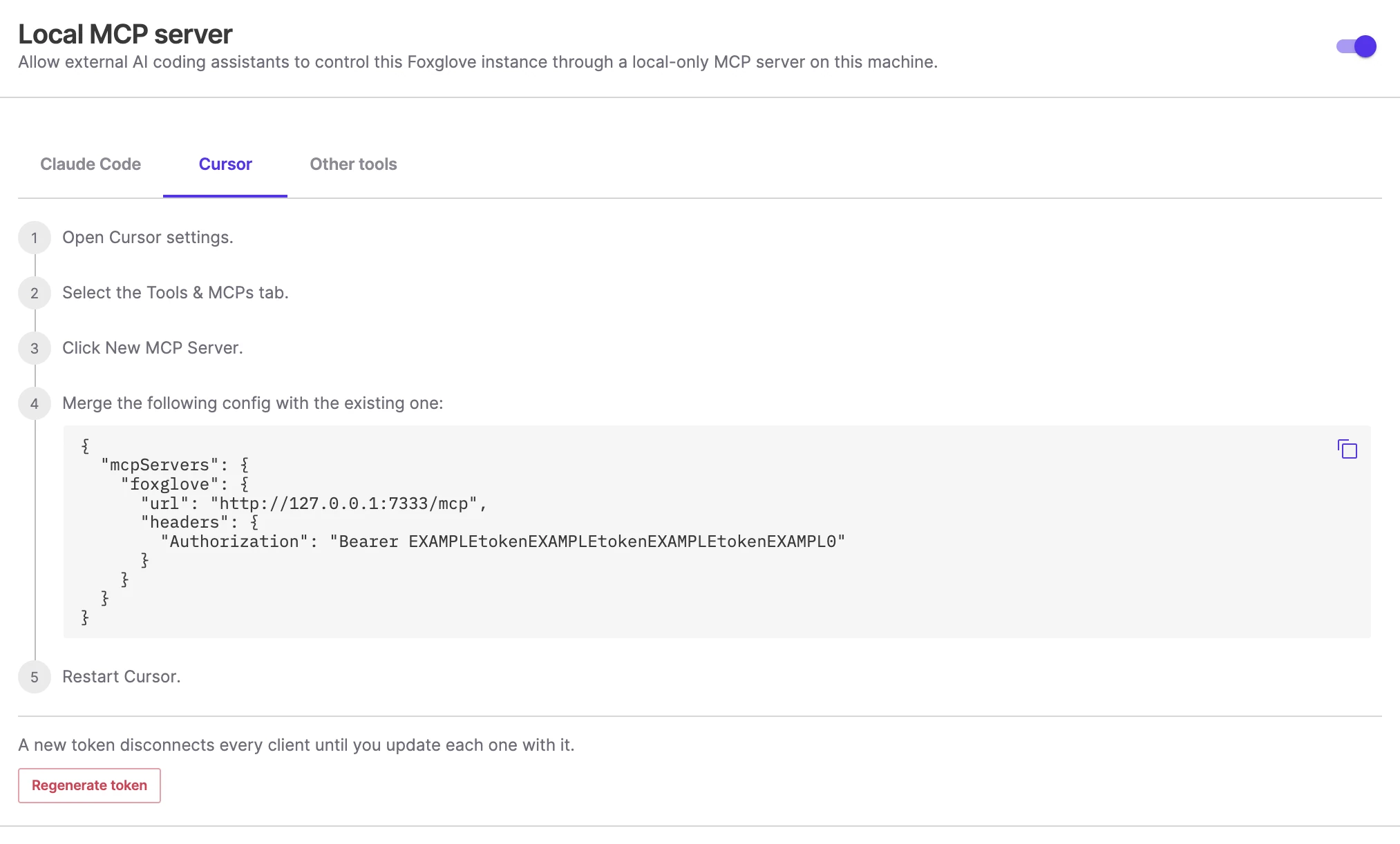
Once enabled, the settings page shows copy-paste setup instructions for each client, with your access token already filled in.
Connect your client
Replace <token> below with the token from Settings → Personal → Agents & MCP.
- Claude Code (CLI)
- Cursor
- Claude Desktop
- Other tools
Run this command in your terminal:
claude mcp add --transport http foxglove http://127.0.0.1:7333/mcp --header "Authorization: Bearer <token>"
In Cursor, go to Settings → Tools & MCPs → New MCP Server and merge this into your configuration, then restart Cursor:
{
  "mcpServers": {
    "foxglove": {
      "url": "http://127.0.0.1:7333/mcp",
      "headers": {
        "Authorization": "Bearer <token>"
      }
    }
  }
}
Claude Desktop doesn't support HTTP servers directly, so the config routes through the mcp-remote adapter. Go to Settings → Developer → Edit Config, merge this into the file, and restart Claude Desktop:
{
  "mcpServers": {
    "foxglove": {
      "command": "npx",
      "args": [
        "-y",
        "mcp-remote",
        "http://127.0.0.1:7333/mcp",
        "--header",
        "Authorization: Bearer <token>"
      ]
    }
  }
}
On Windows, wrap npx in cmd, because Claude Desktop has a known issue running npx directly:
{
  "mcpServers": {
    "foxglove": {
      "command": "cmd",
      "args": [
        "/c",
        "npx",
        "-y",
        "mcp-remote",
        "http://127.0.0.1:7333/mcp",
        "--header",
        "Authorization: Bearer <token>"
      ]
    }
  }
}
Point any MCP client that supports the streamable HTTP transport at http://127.0.0.1:7333/mcp, and send the token in an Authorization: Bearer <token> header on every request.
To verify the connection, ask your agent something like "Which page is Foxglove on right now?". It should answer with your current view.
Access token
The desktop app generates a random access token the first time the MCP server starts, and every client presents it as a bearer token. Treat it like a password:
- The token grants control of your Foxglove app to anything on your machine that has it, so don't share it or commit it to a repository.
- To invalidate it, click Regenerate token on the Agents & MCP settings page. This button only appears while the MCP server is running.
Regenerating the token disconnects every configured MCP client until you update each one with the new token.
Identity and permissions
The MCP server runs in the Foxglove desktop app and listens for connections only on the local machine. If an MCP client uses a tool which leverages Foxglove cloud, the call to Foxglove cloud is forwarded by the app through the signed-in session in the local Foxglove desktop app, and Foxglove evaluates those requests with the signed-in user's existing access. The MCP client can't perform actions which the signed-in user does not possess permissions to perform.
Specifically, the agent can't:
- Open recordings, projects, or organizations the signed-in user can't access.
- Take actions the signed-in user's role doesn't permit.
- Use features the signed-in user's organization plan doesn't include.
Actions performed through Foxglove cloud are attributed to the signed-in user's account. Those covered by Audit logs appear with the signed-in user as the actor, not with the MCP client or agent as a separate identity. Removing a member from the organization invalidates their Foxglove sessions, so an agent can no longer reach Foxglove cloud on their behalf.
The MCP connection to Foxglove is local, but your MCP client may send prompts and tool results to its model provider. Data handling there depends on the client and provider you choose.
Approvals happen in your client
Foxglove doesn't add an approval step of its own. It runs whatever tool your agent calls, as soon as it calls it, and layout changes don't get the diff review the agent sidebar offers.
Writes aren't unguarded, though. Foxglove marks every tool with the standard MCP annotations, so a client can tell a read from a write: read-only tools are flagged as such, and anything that modifies a layout, a user script, or an event is flagged destructive. Most MCP clients ask before running a tool, and Claude Code prompts on each Foxglove tool call until you allow it. Your client's approval settings are the control point here, so check them before pointing an agent at a live app.
What that means in practice:
- If you allowlist the write tools in your client, or run your agent in an auto-approve mode, nothing downstream will stop them. Foxglove won't ask a second time.
- If you want to keep a layout you've been working on, save it before pointing an agent at it.
Troubleshooting
- 401 Unauthorized: your client's token doesn't match the app's. Copy the current token from Settings → Personal → Agents & MCP into your client config, or regenerate it and update every client.
- Connection refused: make sure the desktop app is running and signed in, and that Local MCP server is turned on. A refused connection is also normal for the first few seconds after launch, while the settings page shows Starting the local MCP server…; wait for it to finish before connecting. If the toggle turns itself back off, or the settings page warns that the listener isn't bound, another process is probably using port 7333.
- Tools fail or return nothing useful: many tools act on the currently active data source in the visualization view, and Foxglove offers them even when the app is on another page. Open a recording or connection first, or ask your agent to navigate to it. These tools only see the source open in the tab your agent is working in.
- Your agent doesn't see the data search, device, Projects and Sites, or documentation tools: if the settings page warned that cloud-answered tools were unavailable, Foxglove started the server before it finished fetching them. Reconnect the client so it reads the list again.